Save, export and Push to Unreal Engine
Prepare Unreal Remote Execution, preserve the Project Folder and verify the flat Maps layout.
For: Unreal users
Before you begin
- Completed wrapped project
- Unreal Engine project
- Python Editor Script Plugin and Editor Scripting Utilities
What you will complete
- Saved named project
- Successful Push
- Correct Head/Body map destinations
Enable Unreal prerequisites
Remote Execution must be enabled in the open project before Push.
- 1.1Enable Python Editor Script Plugin.
- 1.2Enable Editor Scripting Utilities.
- 1.3In Edit > Project Settings, search for Python and tick Enable Remote Execution. Leave all Advanced settings at their default values, and restart when requested.
- 1.4Run Blender and Unreal Engine on the same computer.

Enable Unreal Python plugins
Enable Unreal Python plugins
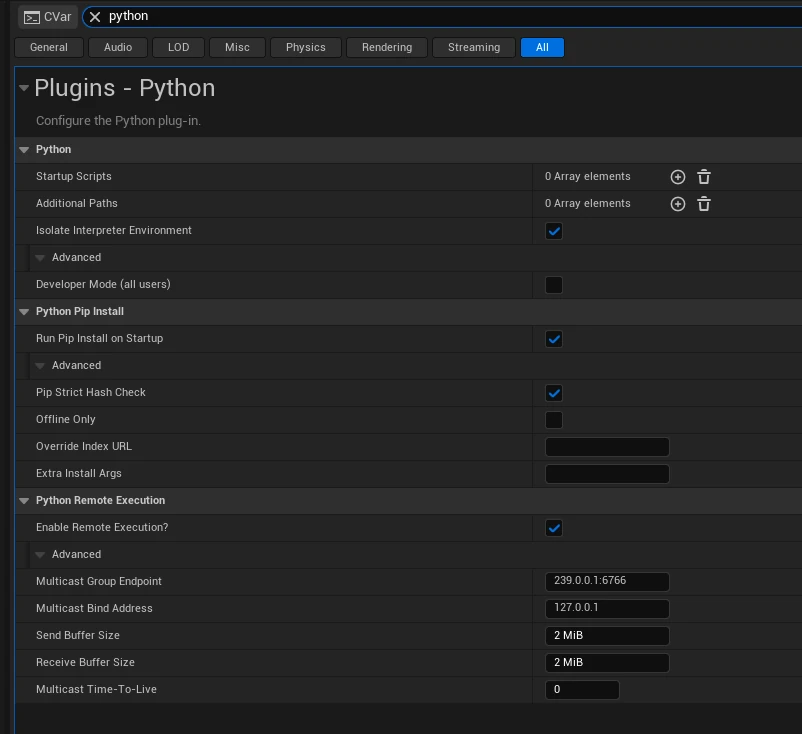
Enable Python Remote Execution
Enable Python Remote Execution
Save the MetaWrap project
Save Project establishes the customer-facing Project Folder and default Push name.
- 2.1Click Save Project and choose a clear character name.
- 2.2The project folder now has your character's name, not an automatic Jobs name.
- 2.3Push to UE5 suggests the same name, and you can still change it.
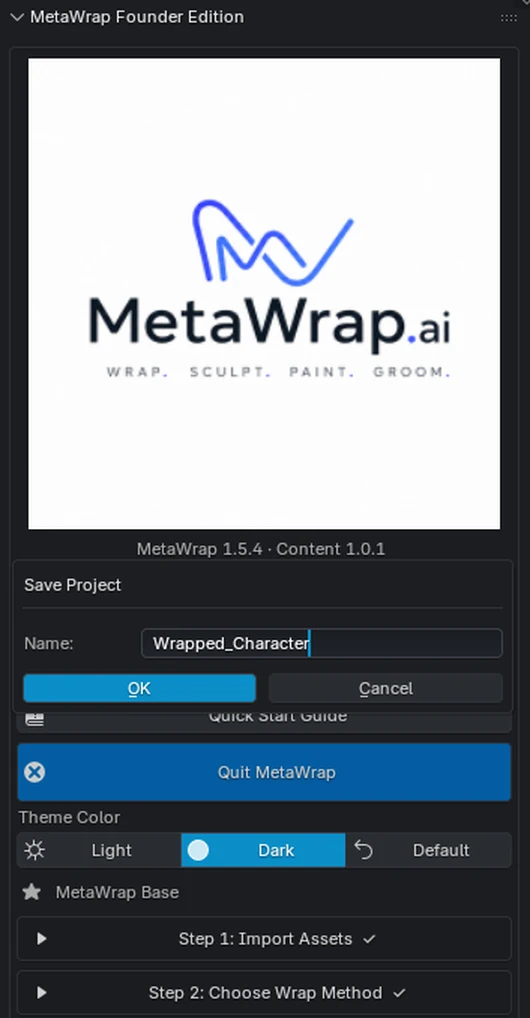
Save the MetaWrap project
Save Project asks for your character's name.
Push and verify assets
Keep Unreal open and inspect the resulting character Maps folder.
- 3.1Open Step 6: Export. Export Conformed Mesh saves the conformed mesh as an FBX file, to use later. To send your character to Unreal now, with its maps, click Push to UE5.
- 3.2Keep Unreal open with Python Remote Execution enabled. Name your character, push Geometry (FBX) + Textures, tick Create MH Character (Unreal 5.7 and later) and click OK.
- 3.3In Unreal everything lands in one folder: the geometry, the maps and the wrinkle maps, and a MetaHuman character already assembled. Albedo, normal and cavity sit together in one flat Maps folder; wrinkles keep their own.
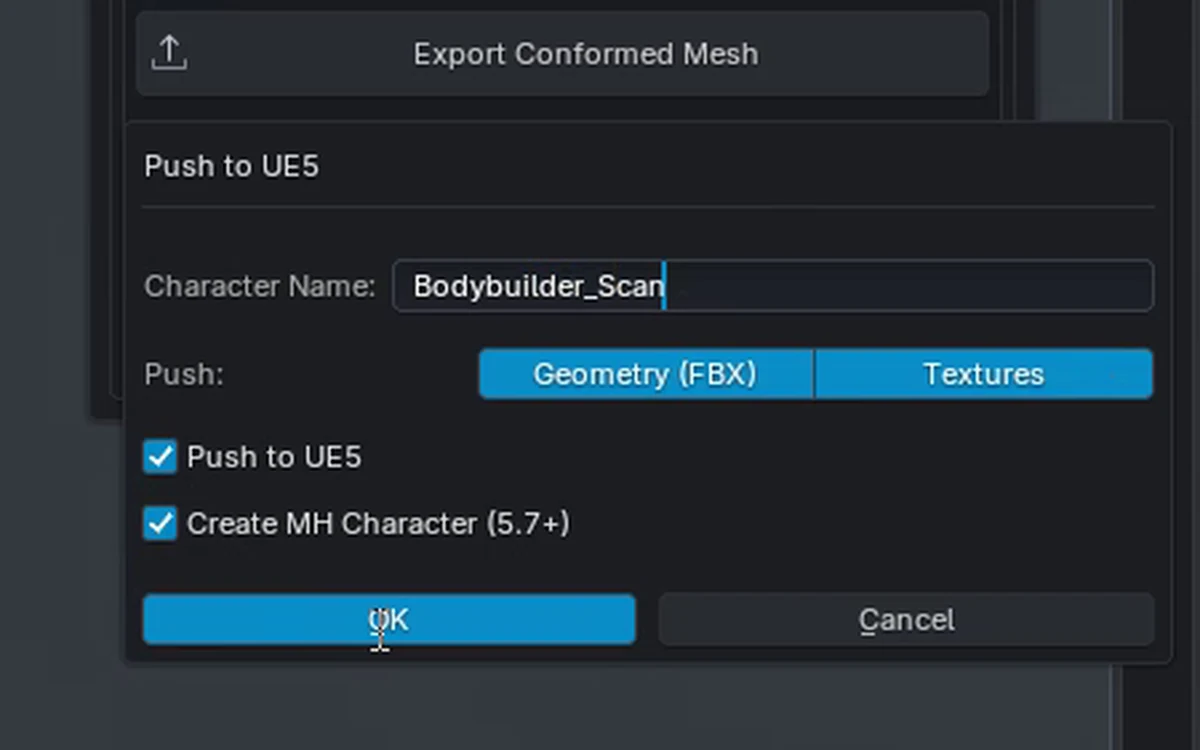
Confirm the Push character name
Confirm the Push character name
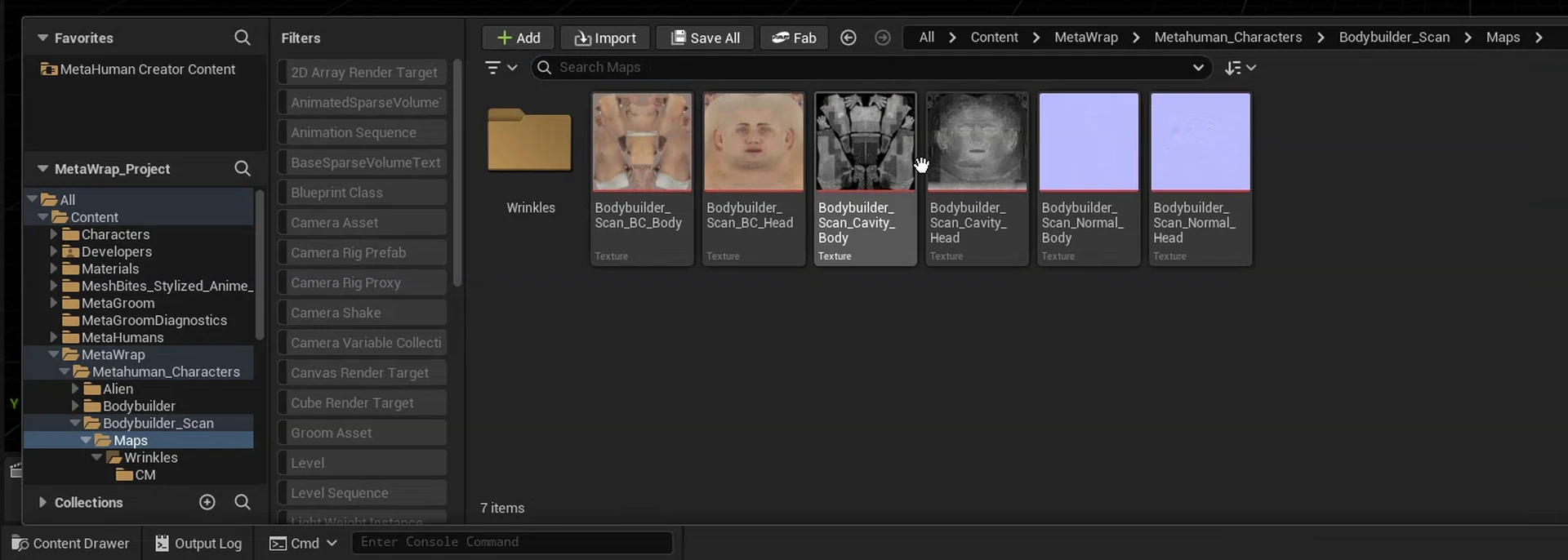
MetaWrap assets in Unreal
MetaWrap assets in Unreal
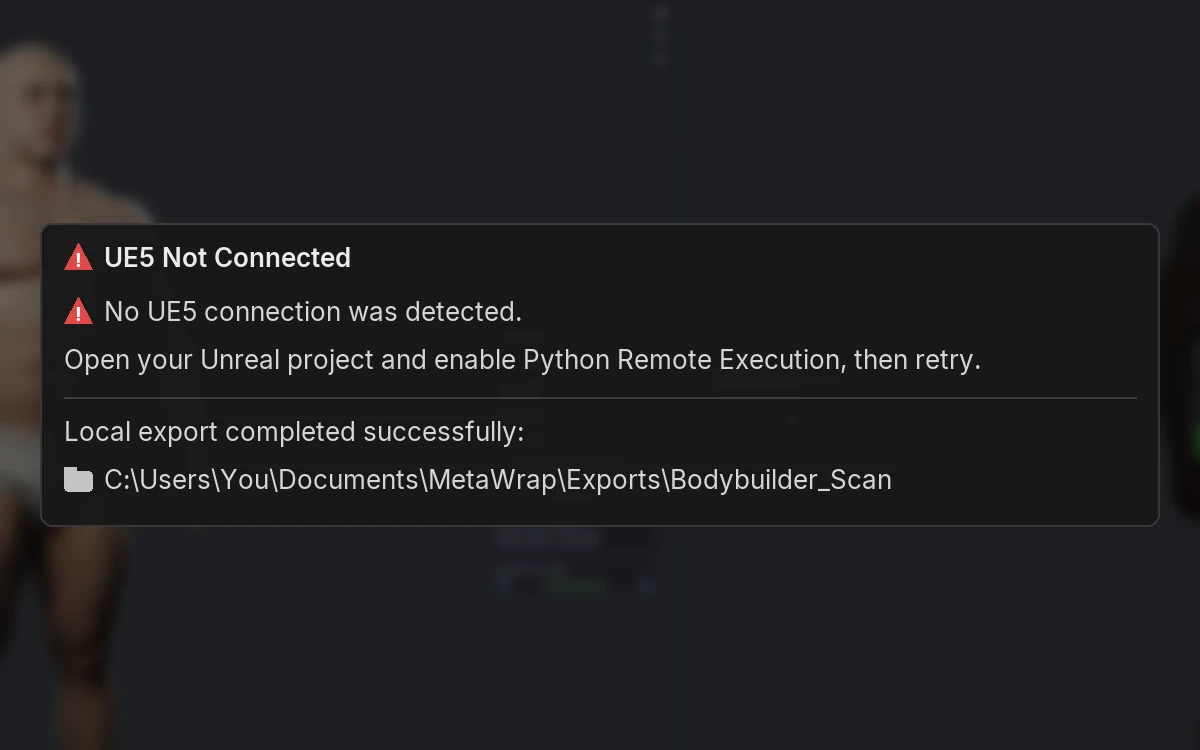
Unreal connection failure guidance
Unreal connection failure guidance
Apply the maps in MetaHuman Creator
Push to UE5 creates a pre-configured MetaHuman; the maps are assigned once in MetaHuman Creator.
- 4.1Open the character in MetaHuman Creator. In Materials, open Texture & Material Overrides and tick Enable Texture Overrides.
- 4.2Assign the face maps (base color, normal and cavity), then the animated maps: CM1 to CM3 for colour and WM1 to WM3 for the wrinkles. Then the body: base color, normal and cavity.
- 4.3It is a real MetaHuman now: keep shaping it with Unreal's own tools, such as Head Sculpt and the body parameters. Then it's ready for MetaGroom.
- 4.4Procedural body: MetaWrap sends geometry, normal and cavity. Pick the default body texture closest to the skin tone, or refine textures in Substance Painter or Mari. A full-body wrap also brings a body color map.
- 4.5Finish with the usual MetaHuman Creator adjustments (teeth, eyes, proportions) and compare with your reference images.
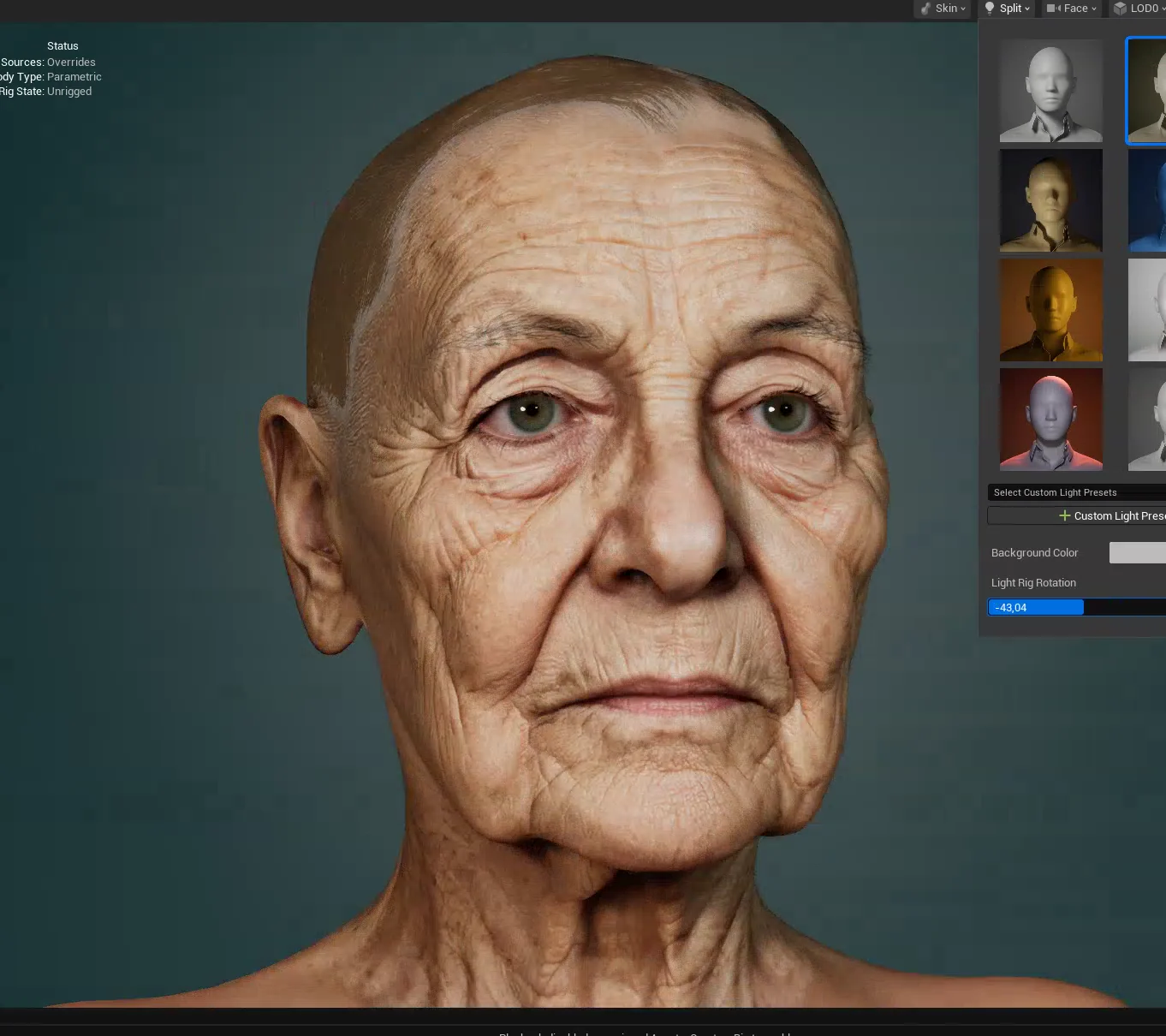
Apply the maps in MetaHuman Creator
In MetaHuman Creator the character uses the MetaWrap maps as texture overrides.