Edit and push grooms with MetaGroom
Bring an existing MetaHuman groom from Unreal into Blender, edit and blend it, and send it back with its wardrobe item created for you.
For: MetaGroom users
Before you begin
- MetaGroom add-on installed (the ZIP as it is)
- The MetaGroom Bridge for your exact Unreal version, in your project's Plugins folder
- Unreal open, with Python Remote Execution enabled
What you will complete
- A MetaHuman head and its scalps in Blender
- An existing groom edited or blended
- A wardrobe item ready in MetaHuman Creator
Install MetaGroom and the matching Unreal Bridge
A one-time setup. MetaGroom and its Bridge are included with Founder Edition, and the Bridge must match your exact Unreal version.
- 1.1In My MetaWrap, under Downloads, download MetaGroom and the MetaGroom Bridge for your exact Unreal version: 5.6, 5.7 or 5.8.
- 1.2In Blender, open Edit > Preferences > Add-ons, choose Install from Disk and pick the MetaGroom ZIP as it is: don't unzip it. Then enable MetaGroom.
- 1.3The Bridge is the opposite: unzip it and copy the MetaGroomBridge folder into your Unreal project's Plugins folder. No Plugins folder? Create one.
- 1.4Restart Unreal, open Edit > Plugins and check that Meta Groom Bridge is enabled.
- 1.5In the same Plugins window, also enable Alembic Groom Importer: Push to UE5 needs it, and Unreal Engine 5.8 ships with it turned off. Restart Unreal when asked.
- 1.6In Edit > Project Settings, search for Python and tick Enable Remote Execution. Leave all Advanced settings at their default values. MetaGroom talks to Unreal through it, so run Blender and Unreal Engine on the same computer and keep Unreal open while you work.
- 1.7When you update, update MetaGroom and the Bridge together, and delete the old MetaGroomBridge folder first: a half-updated pair can crash Unreal Editor.
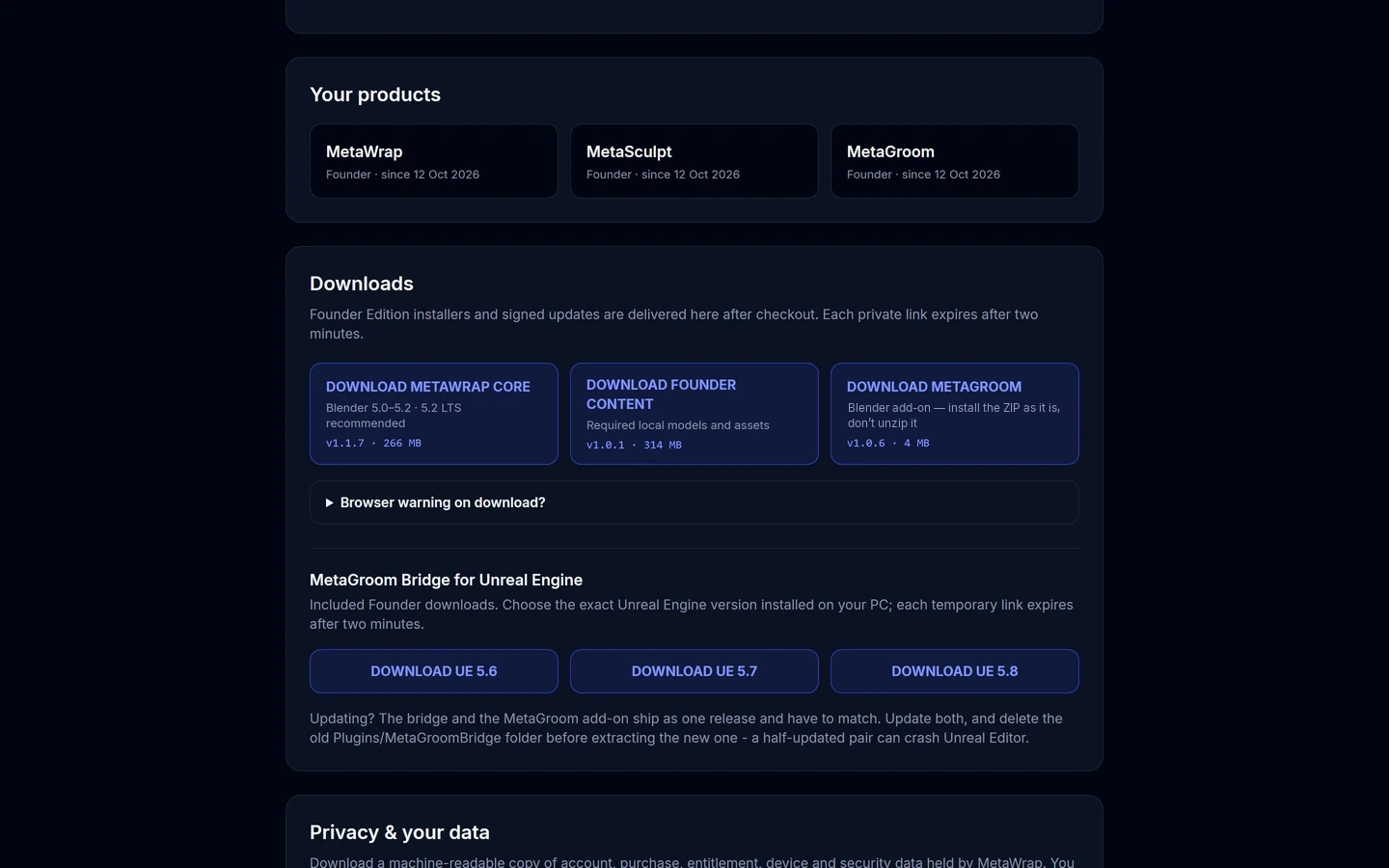
Choose the MetaGroom Bridge version
Choose the MetaGroom Bridge version

The Bridge in your project's Plugins folder
Unzip the Bridge and copy the MetaGroomBridge folder into YourProject/Plugins.
Bring the head into Blender
MetaGroom starts from your MetaHuman's head, with a scalp for each kind of groom.
- 2.1In MetaHuman Creator, export the head geometry and keep the head selected.
- 2.2In Blender, in an empty scene, click Grab Head from UE. You can also use Import MetaHuman Head (FBX) with an FBX you exported from Unreal.
- 2.3MetaGroom creates a scalp for each kind of groom: hair, eyebrows, mustache and beard. Sculpt a scalp to widen the area where the groom grows.
- 2.4These scalps are for grooming from scratch.
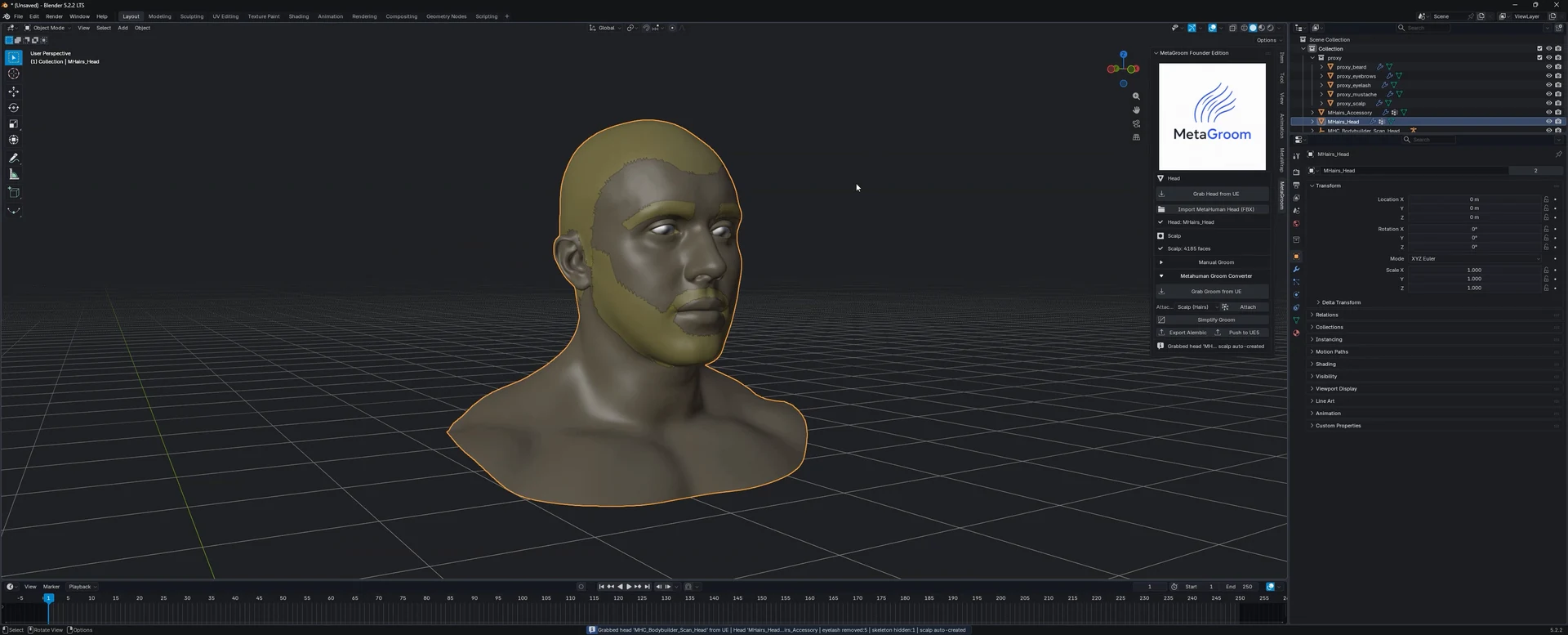
The head and its scalps in Blender
The head from Unreal with its scalps, and the MetaGroom panel.
Push a groom you made from scratch (optional)
Grooming from scratch uses Blender's own hair tools, and some grooming experience. MetaGroom's job is to turn your groom into a MetaHuman wardrobe item, the easy way.
- 3.1Select your groom, click Push to UE5 and give it a name.
- 3.2In Unreal, MetaGroom creates a folder (Content > MetaGroom > your groom) with three assets: the groom, the binding and the wardrobe item.
- 3.3Drag the wardrobe item into MetaHuman Creator, under the right section (for example Beards), and double-click it.
- 3.4The groom arrives with default parameters, so it won't match Blender one to one: tune it in Unreal like any groom. That takes some basic grooming knowledge.
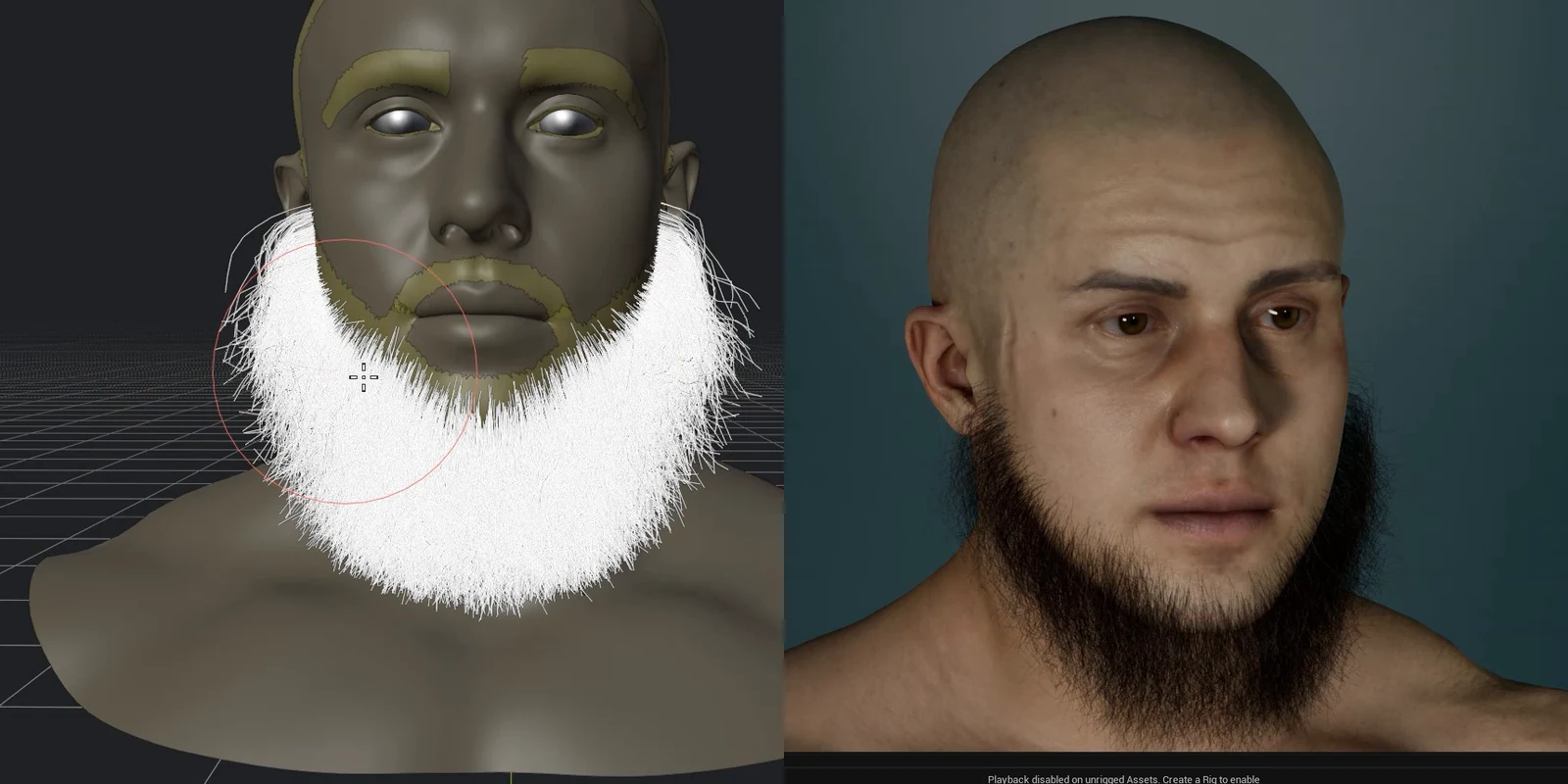
A groom from scratch, in Blender and in Unreal
A quick beard made from scratch in Blender, and the same beard on the MetaHuman after Push to UE5.
Edit and blend the grooms you already have
The best part: start from a MetaHuman groom, change it, mix it with another, and push it back.
- 4.1Pick a groom in MetaHuman Creator, for example a goatee. In Accessory Properties, double-click the component, find the groom element and click Grab Groom from UE.
- 4.2Place it on the face and click Attach on the main scalp, never on the sub-scalps: Attach creates the binding.
- 4.3Edit it: comb, shorten, use mirror, add modifiers, or delete strands that landed in the wrong place.
- 4.4To blend, grab a second groom the same way, attach it, select both and push them together as one groom.
- 4.5In Unreal, drag the new wardrobe item in. Each part keeps its own parameters, so you can blend them.
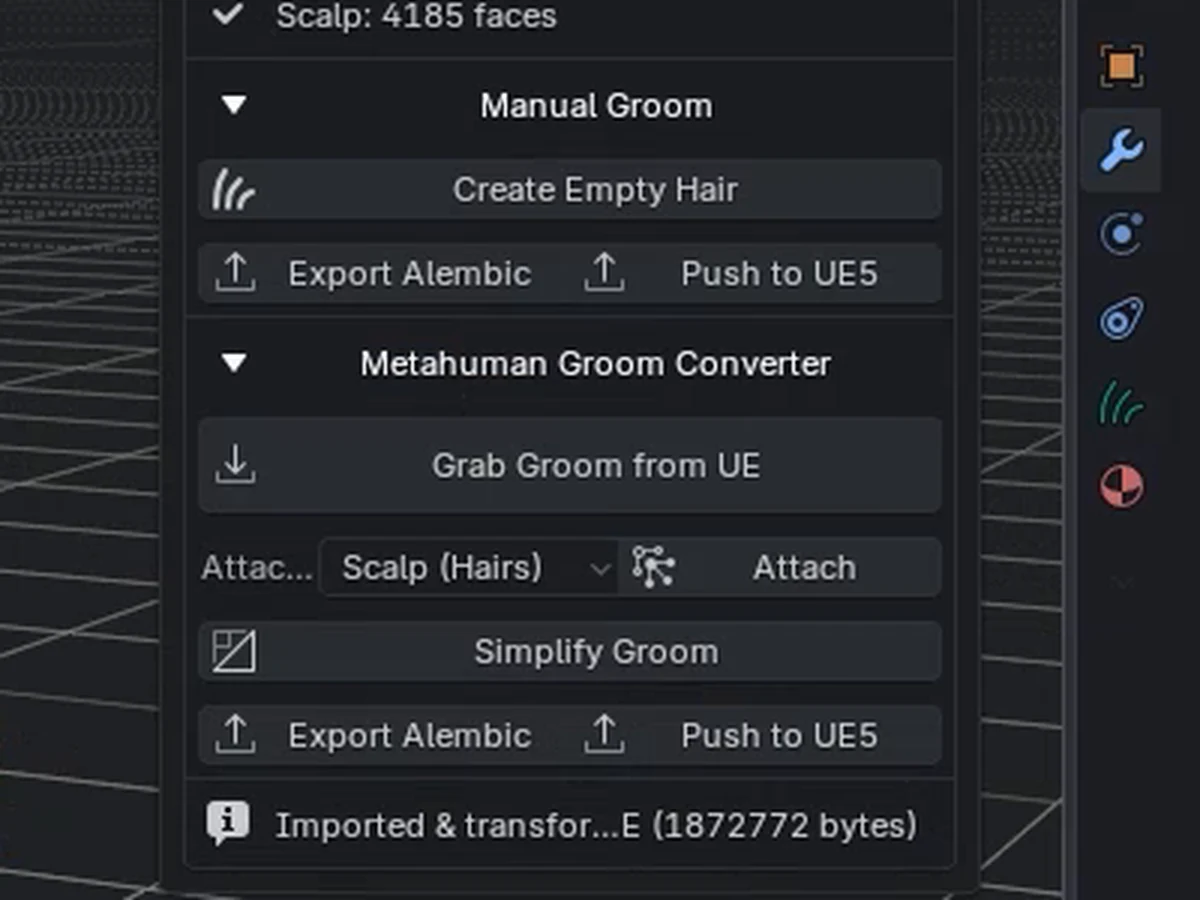
Grab Groom from UE and Attach
MetaHuman Groom Converter: Grab Groom from UE, then Attach on the main scalp.
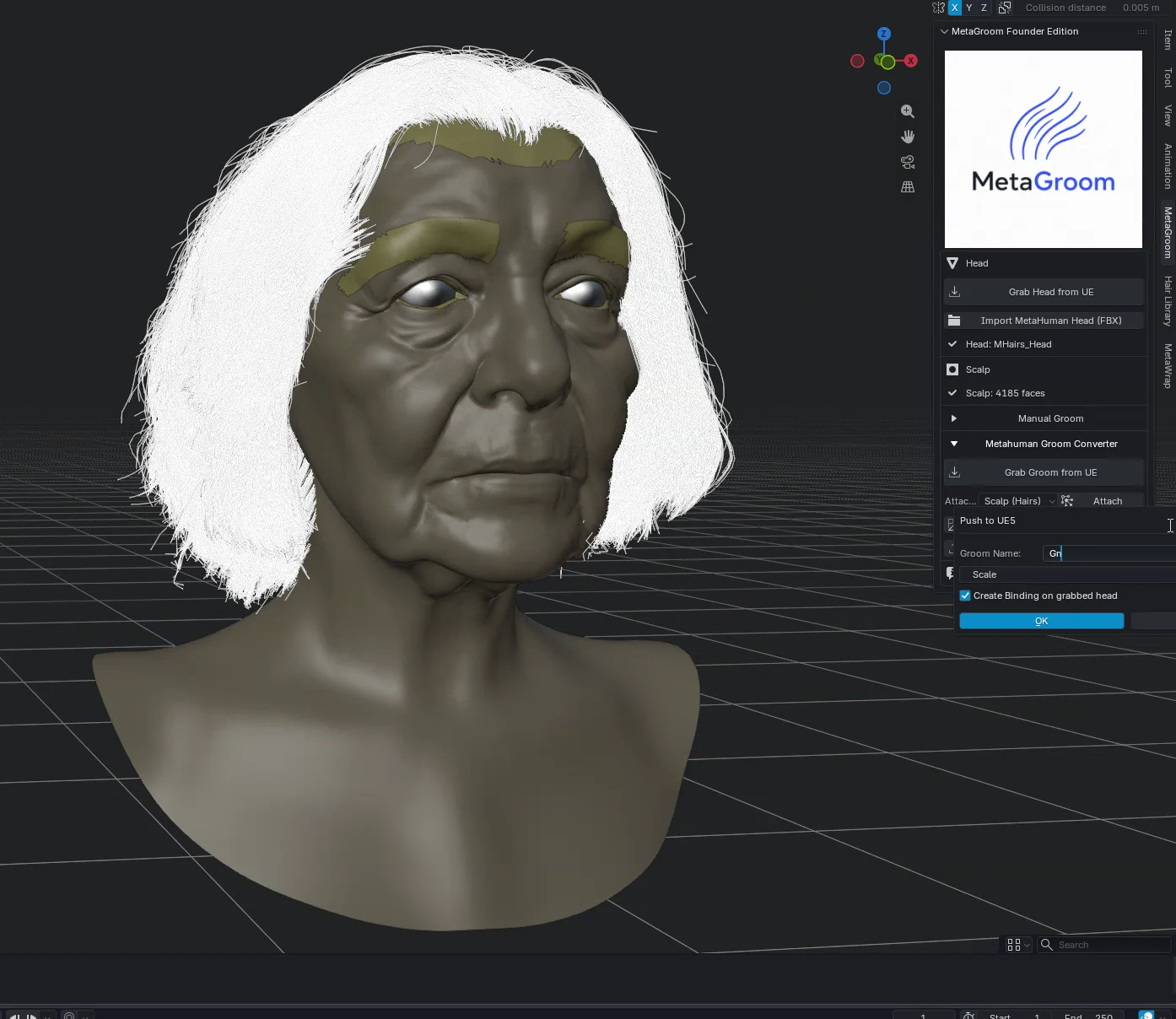
Edit an existing groom
Grab the head and the groom from Unreal, edit the groom in Blender, then push it back. Sped up.
Hair, colour and physics
The same works for hair, and the result behaves like any MetaHuman groom.
- 5.1Apply a hairstyle you like, grab it, attach it and reshape it. Heavy grooms can be slow, depending on your computer.
- 5.2Push it, apply it, and change the colour in the Details panel, like any MetaHuman groom. Copy the hair colour onto the beard for a matching look.
- 5.3Your custom groom is in Unreal, with physics, like any other.