Import and wrap a head scan or AI-generated model
Use the same local workflow for scans and AI-generated head models while preserving the original full-resolution Source for MetaSculpt.
For: Head and scan users
Before you begin
- A head scan or AI-generated model as one single mesh, preferably OBJ (or GLB, or FBX)
- Optional source albedo
What you will complete
- Correct imported model mode
- Useful landmarks
- A result evaluated with Wrap and Conservative guidance
Import the correct asset type
The import choice defines which template parts and workflow are prepared.
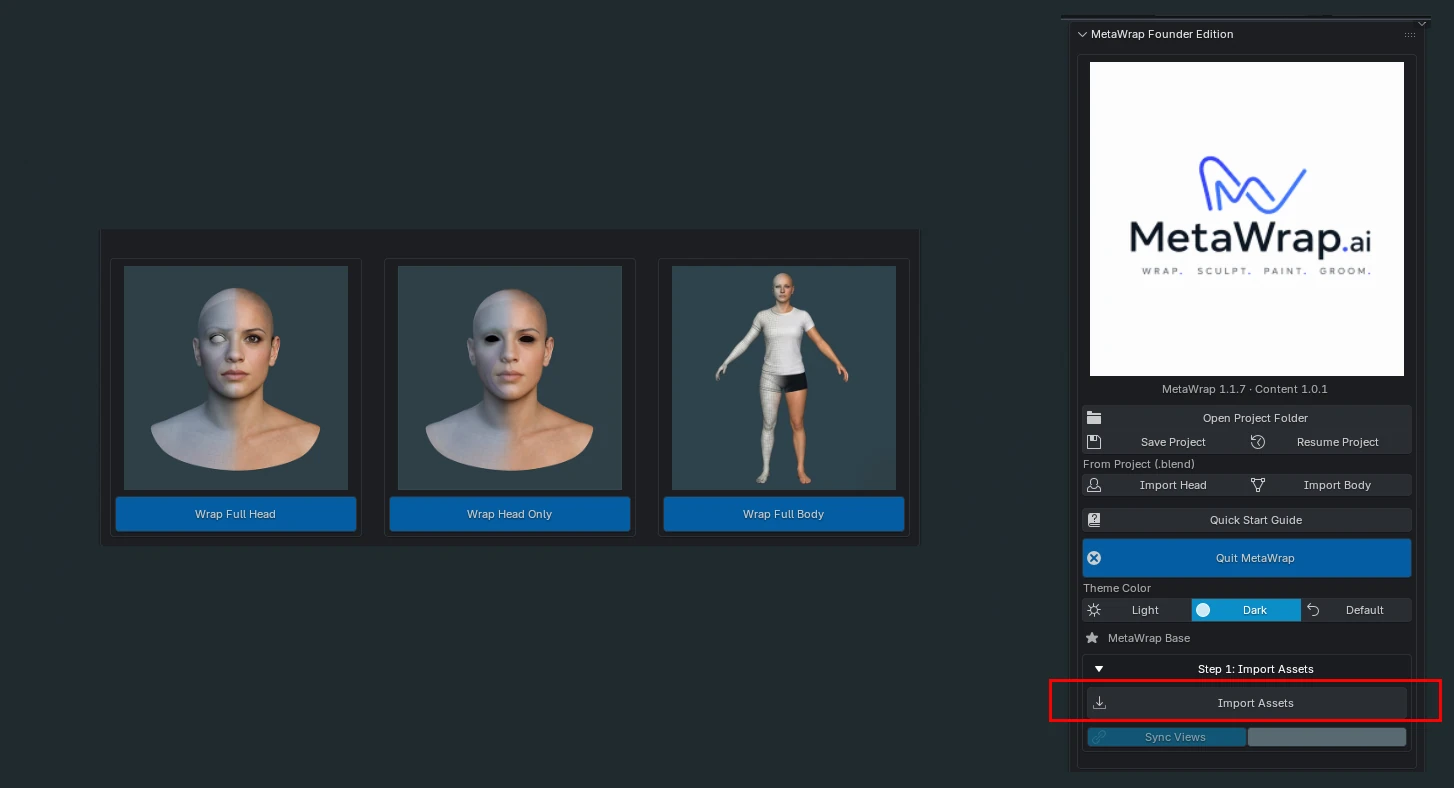
- 1.1Launch MetaWrap and click Import Assets.
- 1.2Choose Wrap Full Head, Wrap Head Only or Wrap Full Body for the actual source.
- 1.3Confirm the Source is upright, centred and visible in the right viewport.
- 1.4On import, MetaWrap brings your model to the MetaHuman reference height: proportions and UVs stay the same. A MetaHuman it recognises is left as it is.
Import Assets
Click Import Assets (red box), under Step 1: Import Assets, then pick the mode: Wrap Full Head, Wrap Head Only or Wrap Full Body.
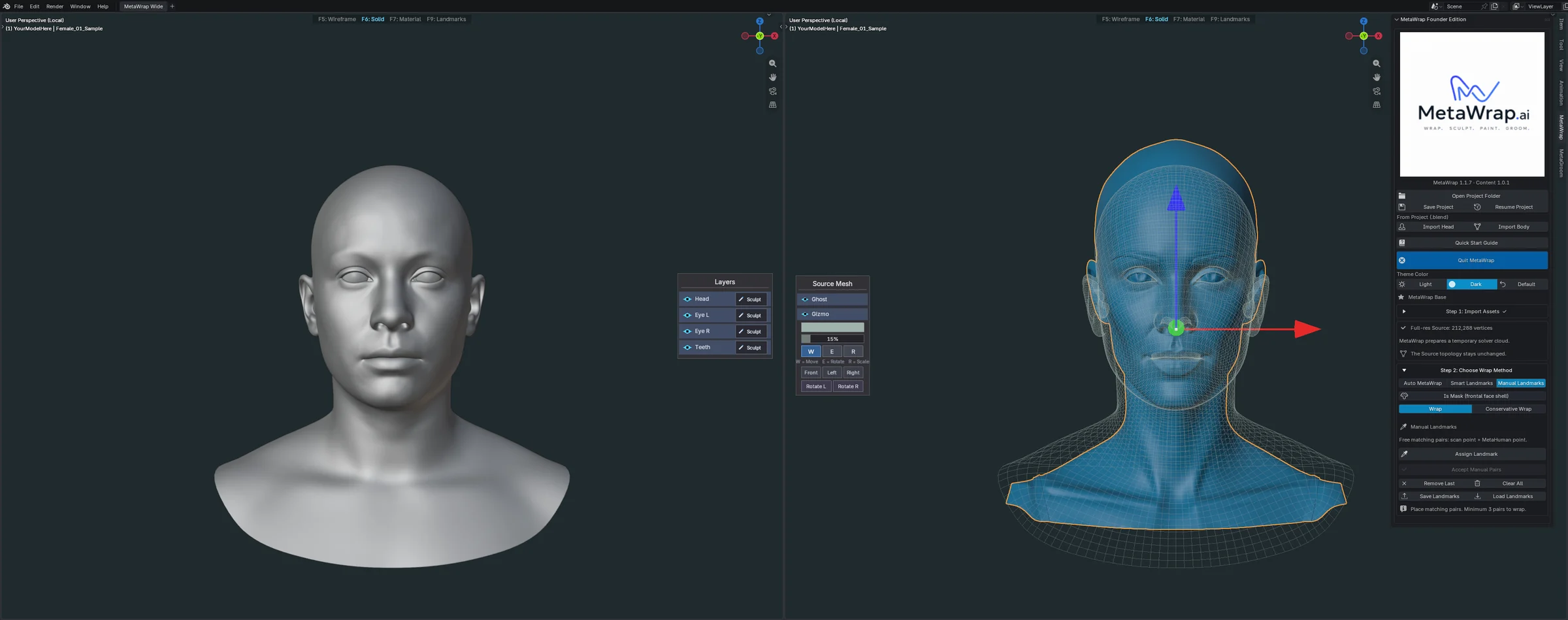
Imported model ready
Your model is in: the MetaHuman template on the left, your head on the right, with the W, E and R gizmo to move, rotate and scale it.
Place the head in the cage
The fit doesn't have to be perfect: the wrap does the precise work. What matters most is the eyes.
- 2.1Move, rotate and scale your head into the cage with the gizmo. The keys are the same as in Unreal Engine: W moves, E rotates, R scales.
- 2.2Line up the eyes with the template's eyes. They are the most important part; the rest can be approximate.
- 2.3Check from the front and from the side (Front, Left, Right in the Source Mesh panel) before you run the wrap.
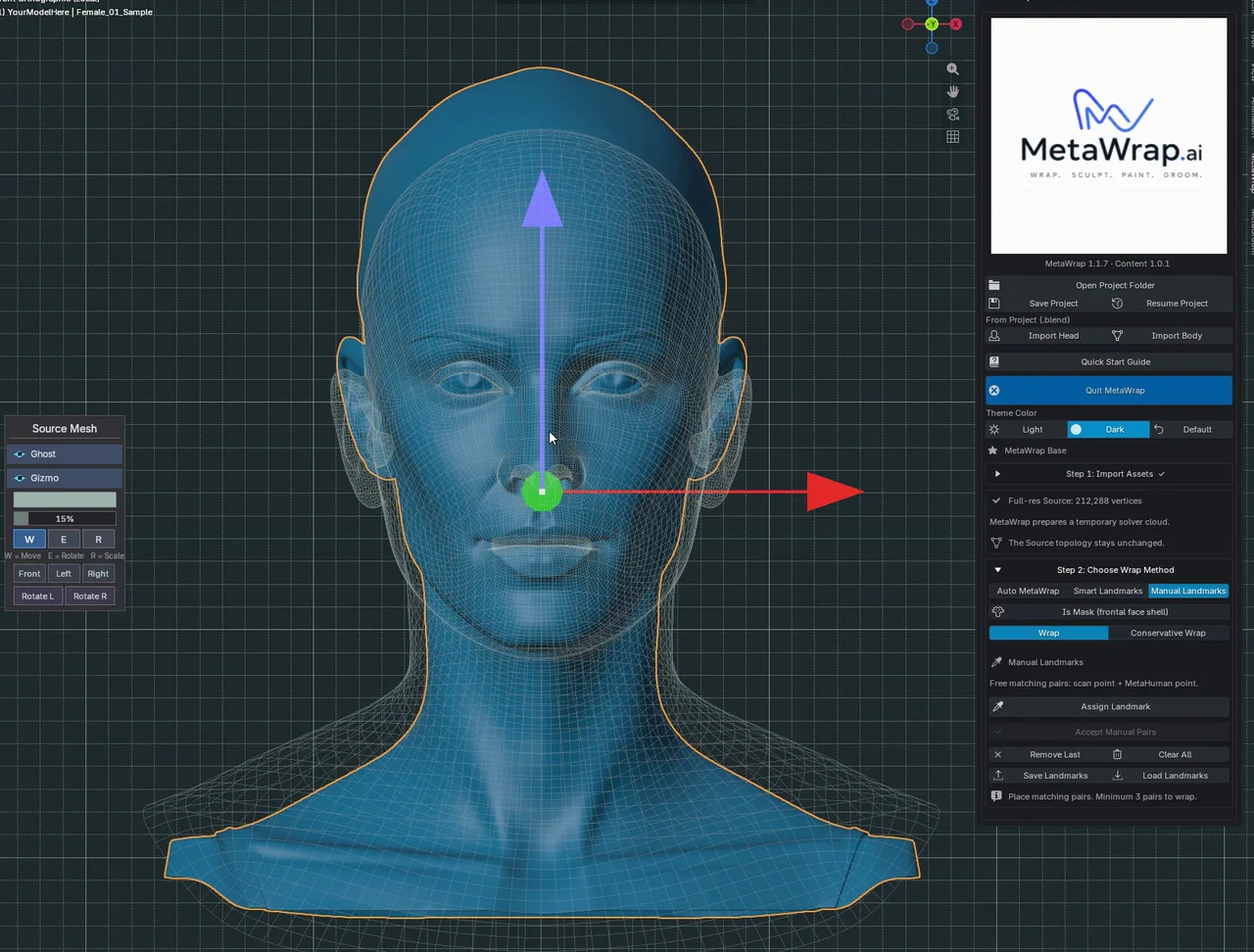
Place the head in the cage
Fitting the head in the cage, front and side: a rough fit, with the eyes on the template's eyes.
Lighten a dense model (optional)
Before the wrap you can make a dense scan lighter, so it wraps faster. The texture comes after the wrap.
- 3.1Decimate Mesh (Optional) makes a lighter copy of your model just for the wrap, so dense scans wrap faster.
- 3.2Your full-resolution model is always kept: MetaSculpt uses it later to bring back the fine detail. Without Decimate the wrap uses the full mesh and takes longer.
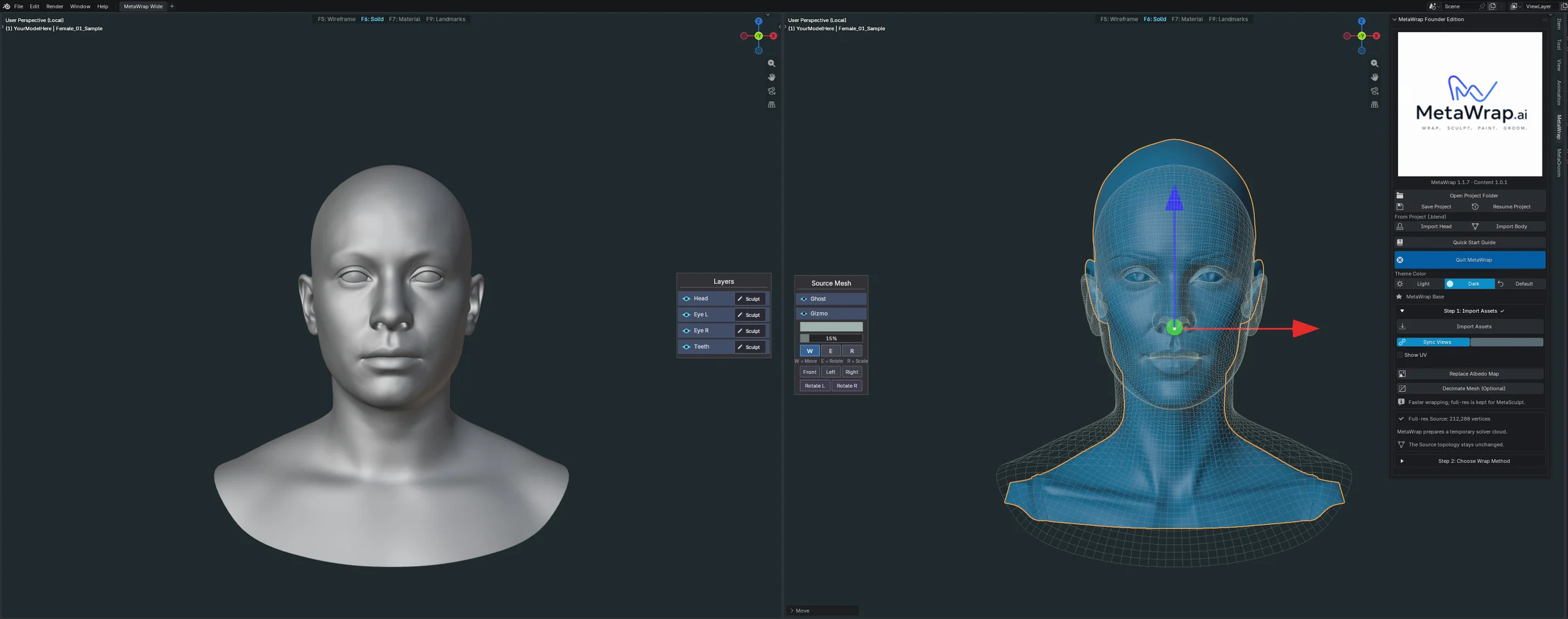
Source preparation controls
Step 1 in the panel: Replace Albedo Map, Decimate Mesh (Optional) and the vertex count of your full-resolution model.
Choose the wrap method
Landmarks are the matching points between your head and the MetaHuman. Step 2: Choose Wrap Method has two ways to place them: Auto and Manual. Start with Auto.
- 4.1Open Step 2: Choose Wrap Method and pick Auto or Manual.
- 4.2Auto: leave Wrap selected unless your head needs Conservative Wrap (see below). Manual: place your pairs.
- 4.3Then click MetaWrap in Step 3: Wrap, right below. It is the same button for Auto and Manual.
Auto
Most used- One click: MetaWrap recognises the human face and places the landmarks by itself.
- The right choice for most heads: scans, sculpts and AI models with a clean face.
- Choose Wrap or Conservative Wrap, then click MetaWrap in Step 3: Wrap.
Manual
Full control- Click Landmarks, then click a point on your head and the matching point on the MetaHuman. A point can sit anywhere on a face of the mesh, not only on a vertex.
- At least 3 pairs, spread out and not in a line. How many you need for a good result depends on the model.
- There is no confirm button: when the pairs are in place, click MetaWrap in Step 3: Wrap.
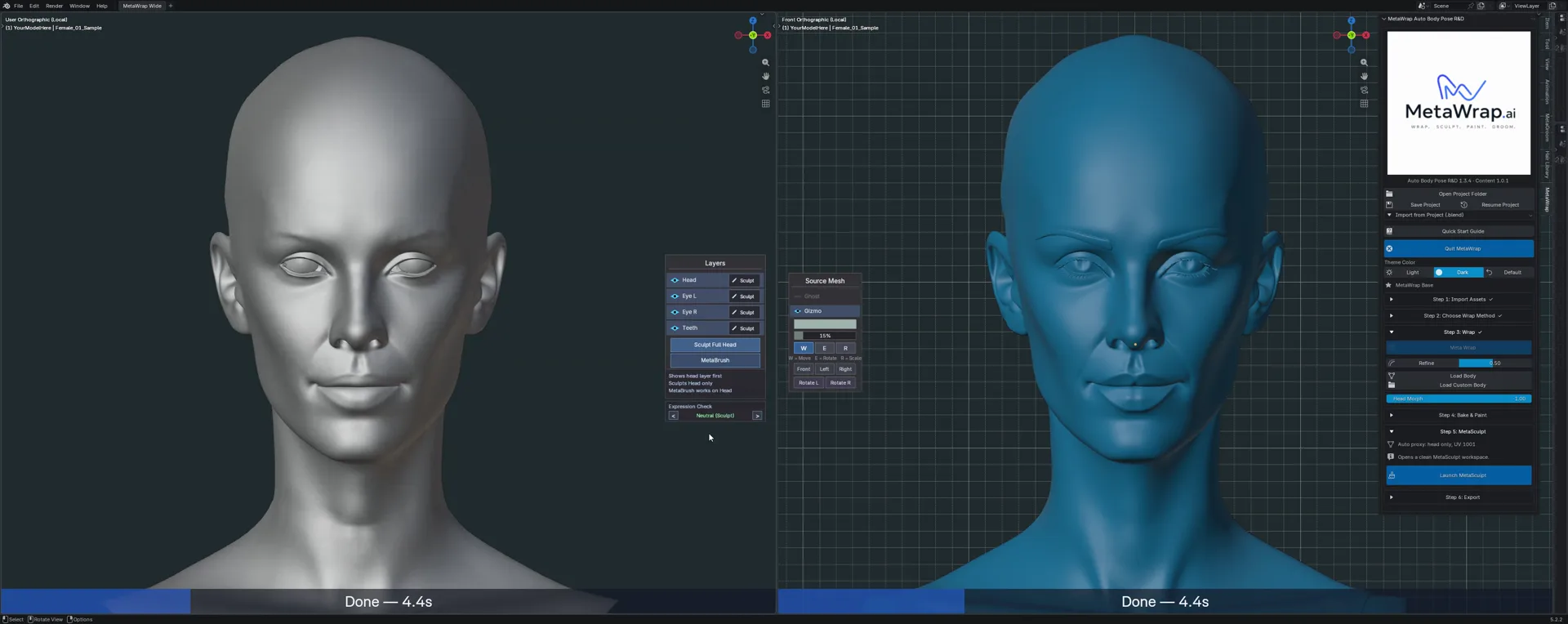
Auto in action
Auto: one click on MetaWrap, in Step 3. MetaWrap finds the face, places the landmarks and wraps the head.
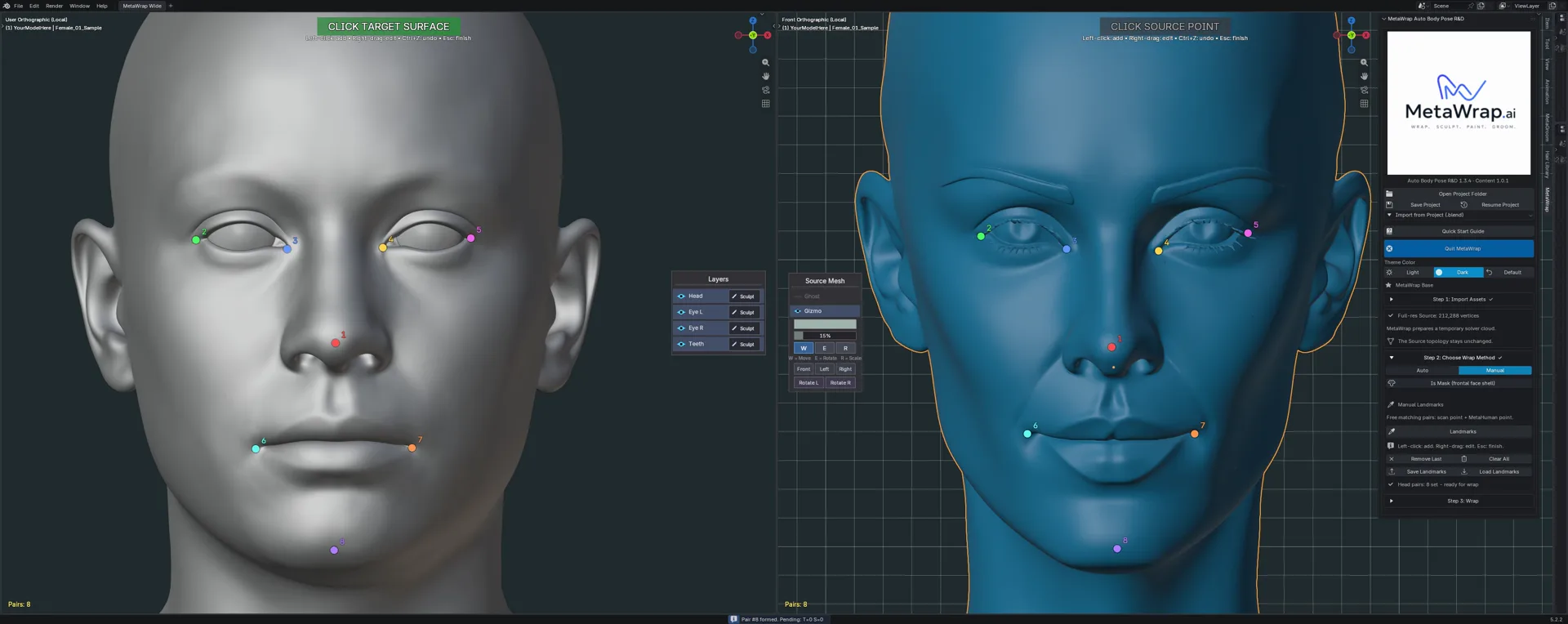
Manual in action
Manual: click a point on your model on the right (CLICK SOURCE POINT), then the same point on the MetaHuman on the left (CLICK TARGET SURFACE). Each pair gets a number and a colour.
Evaluate the result
Inspect structure before texture transfer or sculpt refinement.
- 5.1Compare silhouette, eyes, mouth, ears and neck.
- 5.2Use the same camera for Source/result comparison.
- 5.3Head Morph, in Step 3: Wrap, goes from 0 to 1: 0 is the MetaHuman you started from, 1 is your head. Any value in between gives you an in-between result.
- 5.4If something looks off, Ctrl+Z undoes the wrap. After a Manual wrap your landmarks are hidden, not deleted, and Undo brings them back: move or add points and run it again. With Auto, try Conservative Wrap or switch to Manual.
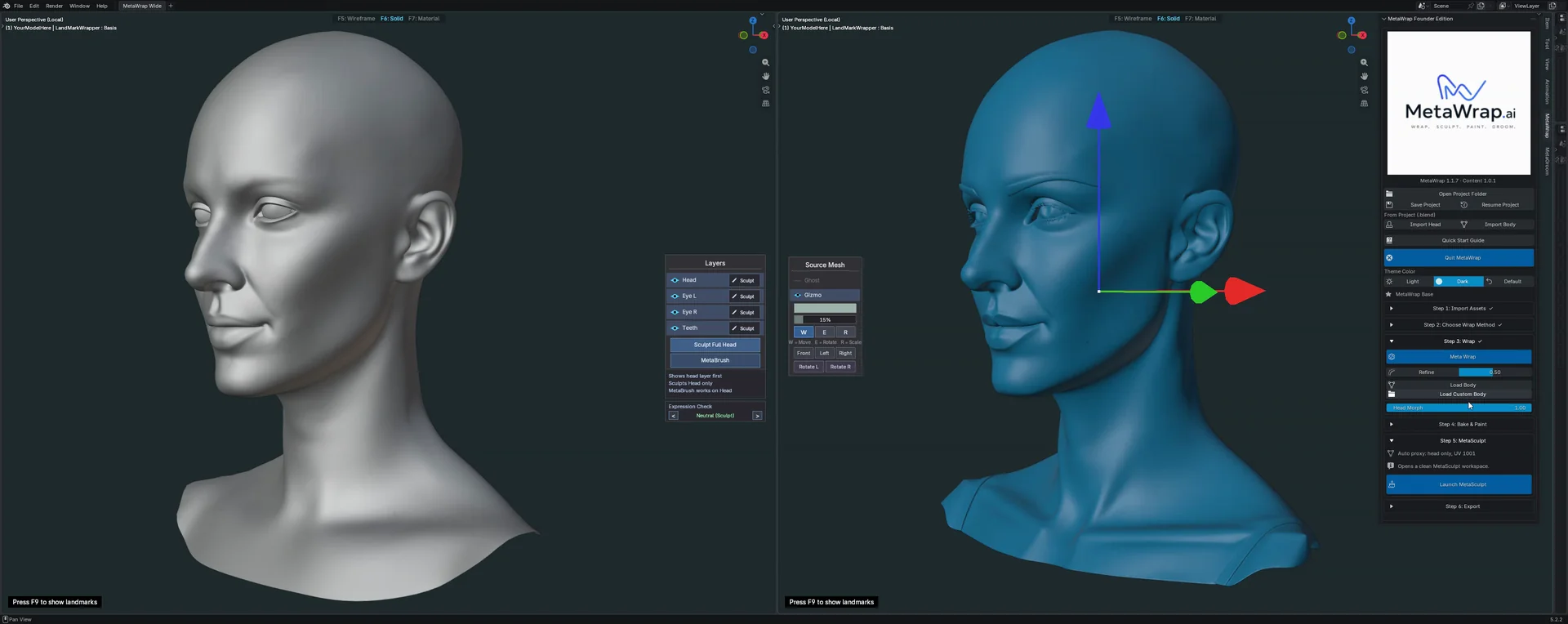
Head Morph after the wrap
Slide Head Morph from 0 (the MetaHuman template) to 1 (your head), or stop anywhere in between.
Add the skin texture
With the head wrapped, bring in its colour. If your model has no texture, this is where you add it.
- 6.1If your file came with its own texture, MetaWrap already uses it.
- 6.2If it has none, or to use a better one: open Step 1: Import Assets again, click Replace Albedo Map and pick the image.
- 6.3Then follow the Texture tutorial: Texture Transfer moves the colour onto the MetaHuman UVs.
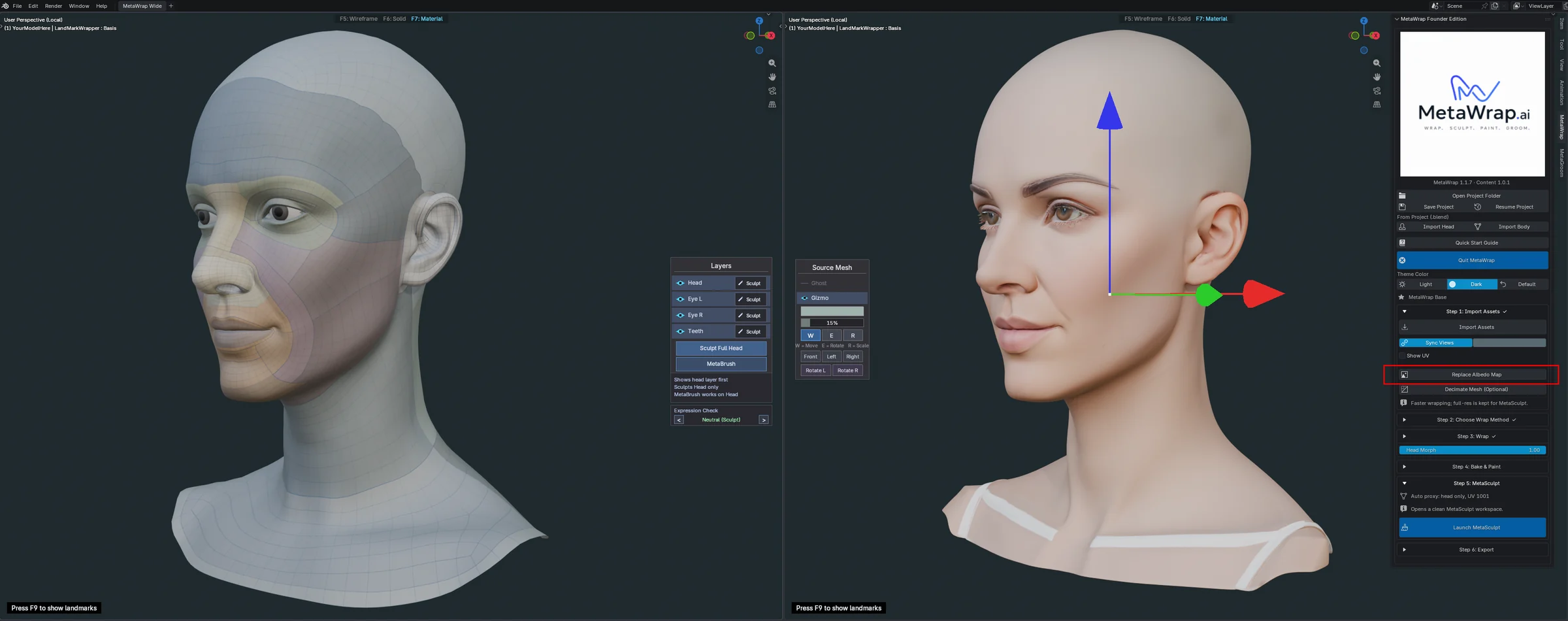
Replace Albedo Map
Replace Albedo Map (red box) stays in Step 1: Import Assets. It is where you add the colour map when your model has none.
Check the expressions, fix with MetaBrush
Expression Check tests your conformed head in MetaHuman's expressions, so you can see whether the geometry deforms cleanly. Where it doesn't, MetaBrush restores it.
- 7.1Turn on Expression Check and step through the expressions with the arrows. Look for spikes, folds or points pulled out of place.
- 7.2Check the inner corners of the mouth first: that is where spikes show up most often.
- 7.3Where you see one, click MetaBrush and paint over it: MetaBrush smartly restores those points to a clean shape. Enter applies, Esc cancels.
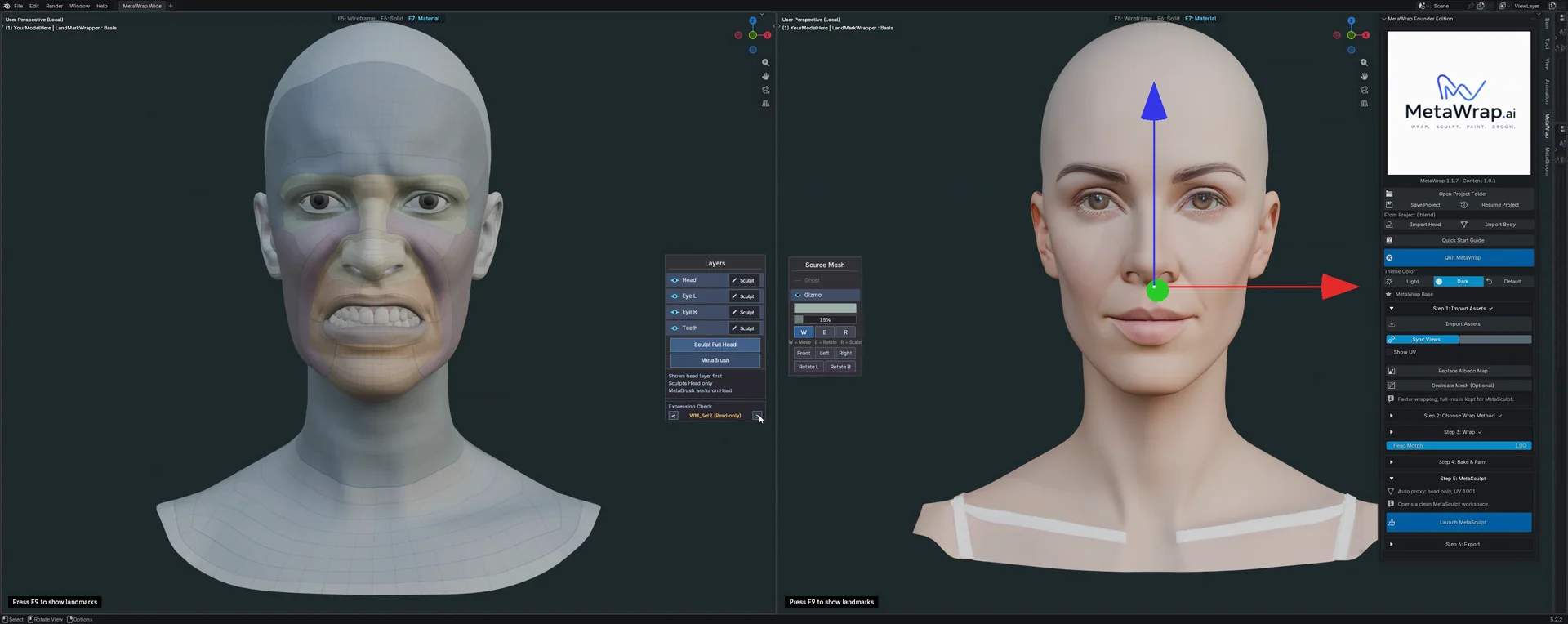
Expression Check and MetaBrush
Expression Check steps through MetaHuman's expressions to test the geometry. Where a point misbehaves around the mouth, MetaBrush paints it back into shape, then Apply.
Sculpt the full head
Sculpt Full Head works on the whole head at once. With Wrap Full Head the eyes and the teeth come along: move or resize the eye sockets and the eyes follow.
- 8.1In the Layers panel, click Sculpt Full Head. With Wrap Full Head it sculpts the head, the eyes and the teeth at the same time.
- 8.2Wrap Full Head: move or resize the eye sockets and the mouth, and the eyes and the teeth adapt with them.
- 8.3The head is split into predefined masks: Head, Ears, Inner Parts, Eyes and Upper Orbital Rim. Expand Head in the Layers panel and press Sculpt next to one to sculpt only that area.
- 8.4To work on one part alone, use the Sculpt button next to Head or, with Wrap Full Head, next to Eye L, Eye R or Teeth.
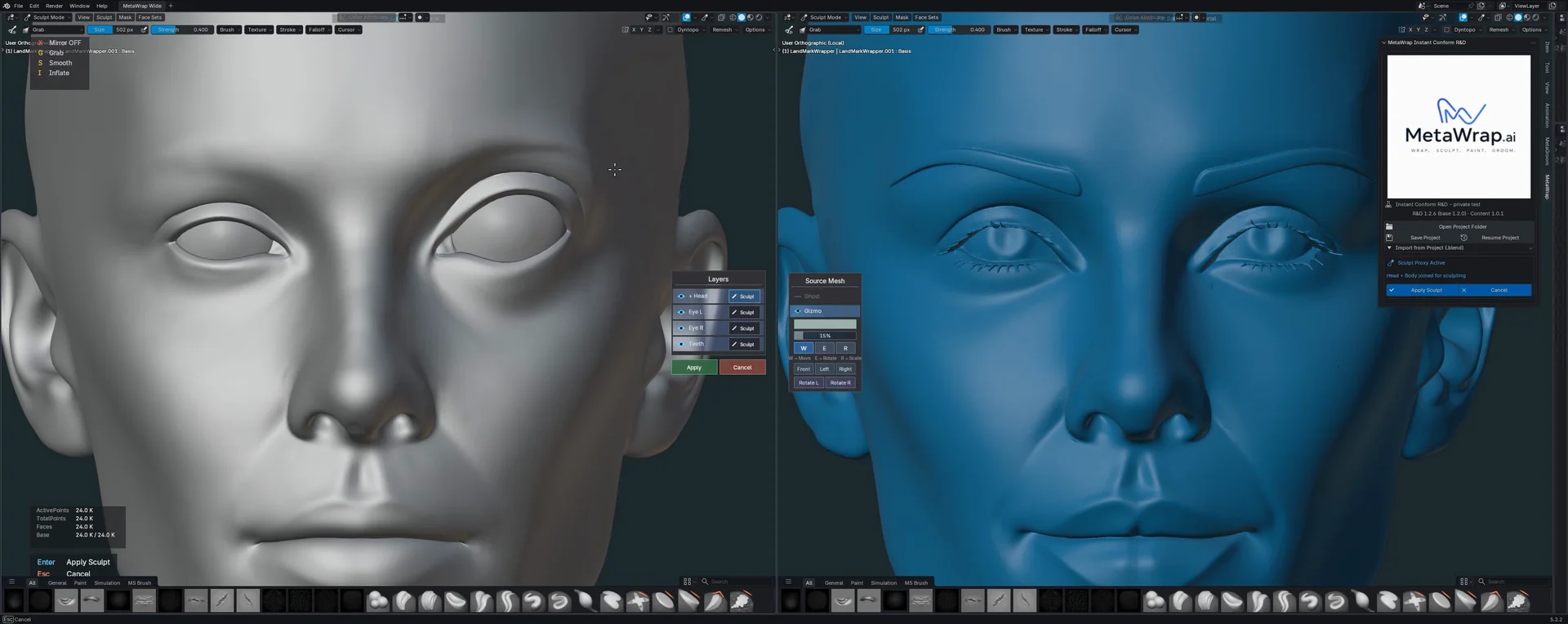
Sculpt Full Head
Sculpt Full Head: the head, the eyes and the teeth are sculpted together.
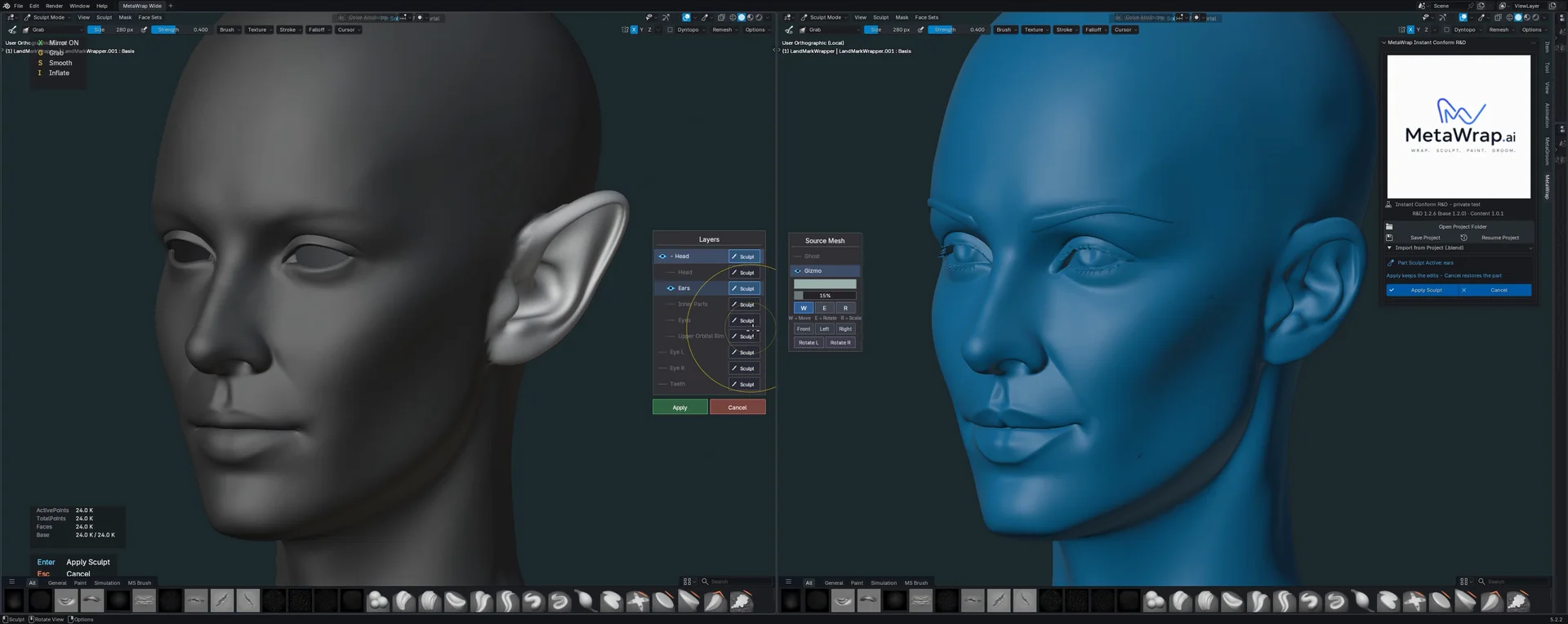
Masks and eyes
Sculpting with the predefined masks: the Ears mask reshapes only the ears, the Eyes mask only the area around the eyes.
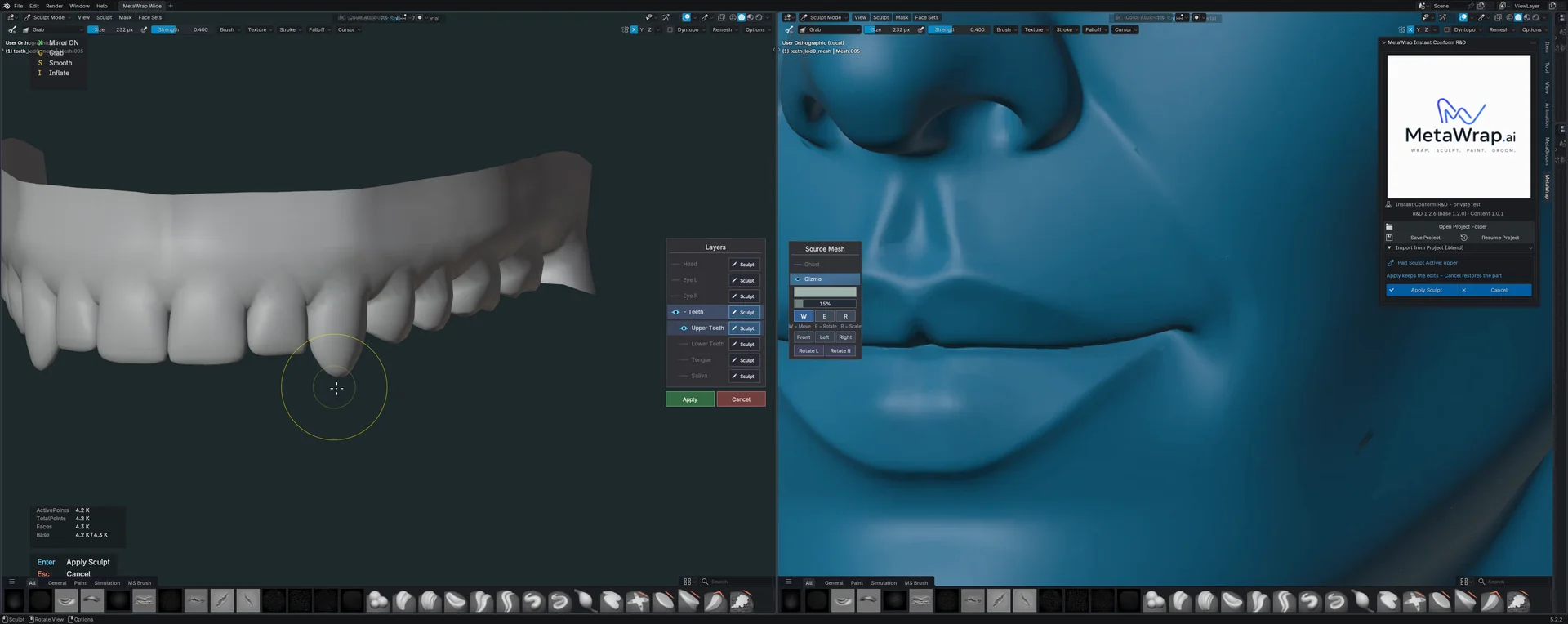
Teeth
One part alone: press Sculpt next to Teeth and reshape only the teeth, here into a fang.