Manage Project
Every character lives in its own project. Save and resume it from the panel, and reuse heads and bodies across projects.
For: Every MetaWrap user
Before you begin
- A MetaWrap session open in Blender
What you will complete
- A saved project you can resume
- Heads and bodies mixed across projects
- A reusable custom body
Save and resume a project
MetaWrap saves everything it needs in the Project Folder.
- 1.1Click Save Project and give the character a clear name: MetaWrap creates a folder with that name in Documents/MetaWrap, or in the folder you chose in Preferences.
- 1.2Jobs folders are automatically named working folders, created before you give your project a name. Logs is there for support.
- 1.3Your project folder stores the Blender scene, and the geometry and maps generated during the workflow.
- 1.4Open Project Folder opens your MetaWrap projects folder: open your character's folder to find its files. Resume Project reopens a saved project where you left it.
- 1.5Don't rearrange the MetaWrap interface: the two views and the panels are designed to work together. Move between steps with the buttons in the panel.
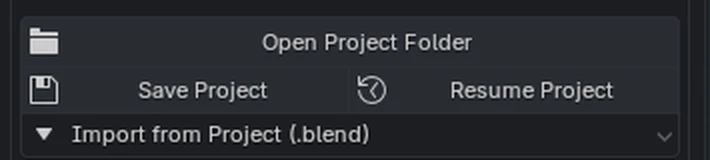
Save and resume a project
Open Project Folder, Save Project, Resume Project and Import from Project (.blend), at the top of the panel.
Mix heads and bodies from other projects
Reuse your work: a head from one project, a body from another.
- 2.1Open the Import from Project (.blend) menu, click Import Head and pick another saved project: its head replaces the current one, and your body stays.
- 2.2Click Import Body to do the same with the body: your head stays.
- 2.3Mix them freely: a head you wrapped before on a new body, or a new head on a body you already shaped. Then join them with Attach Head to Body.
- 2.4A head and a body from two different projects come from two different wraps, so their skin colour won't match at the neck: that is inevitable. Blend the textures afterwards, in your painting app or in Unreal.
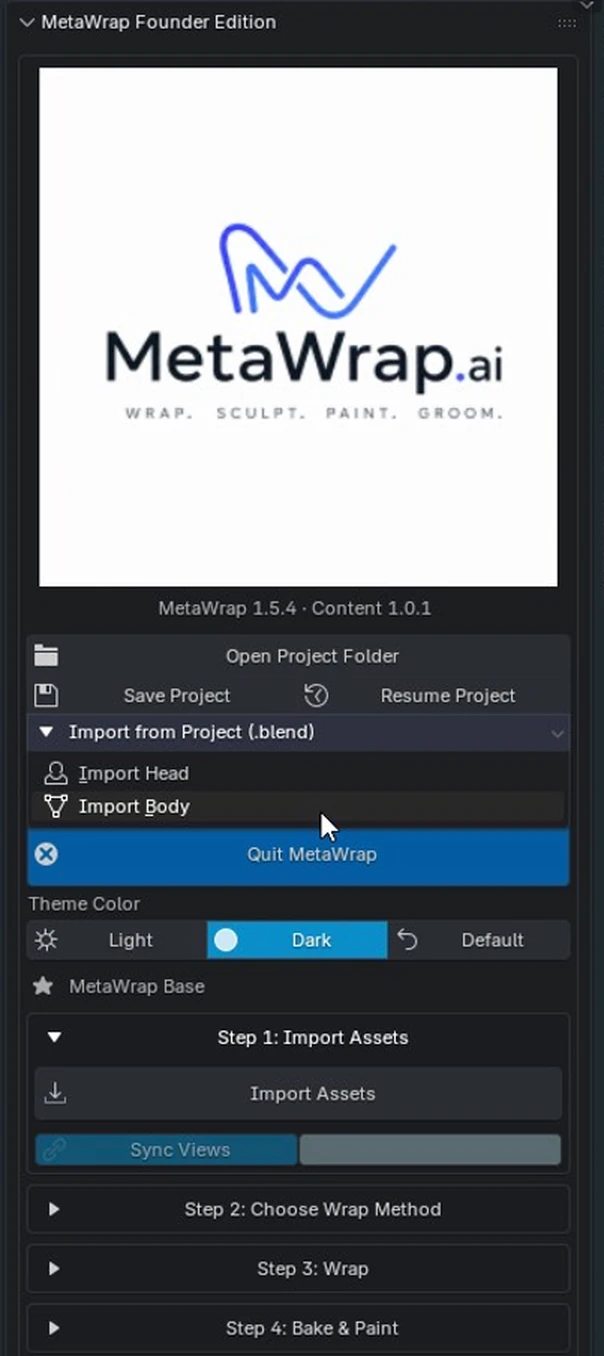
Import a head or a body from another project
Open Import from Project (.blend): Import Head and Import Body are inside.
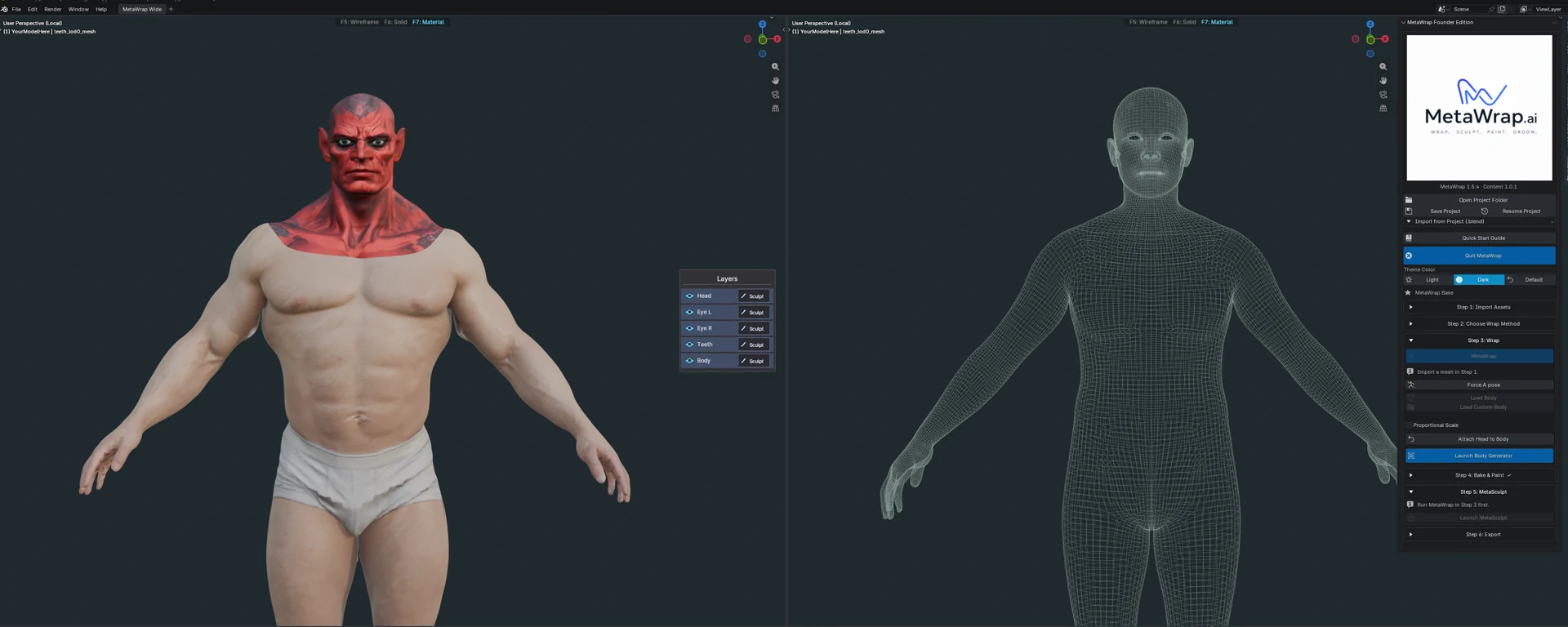
A head and a body from two projects
A head from one project on a body from another: the skin colour doesn't match at the neck, because they come from two different wraps.
Keep a custom body for later
A body you like can become your starting point next time.
- 3.1First, save your project. Then click Save Custom Body: the body is exported as a reusable OBJ, without materials or textures. Keep Selection Only checked, so the file holds one single object.
- 3.2In a new project, click Load Custom Body to use it instead of the default MetaHuman body.
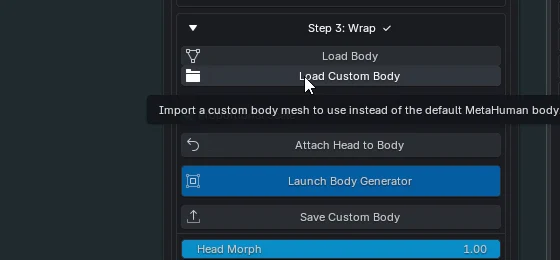
Save and load a custom body
Load Custom Body brings back a body you saved with Save Custom Body.