Refine detail in MetaSculpt
Create one non-destructive Sculpt Layer, apply Scan Data once and produce Unreal-ready final maps.
For: Detail and texture users
Before you begin
- Completed MetaWrap result
- Content Pack installed for Base Pores
- Saved project recommended
What you will complete
- Correct LV1/LV2/LV3 choice
- Non-destructive scan/sculpt detail
- Final DirectX normal and cavity maps
- Wrinkle and blood flow maps for expressions
- Final maps previewed back in MetaWrap
Launch and preview maps
MetaSculpt opens a dedicated project while retaining the originating scan reference.
- 1.1Click Launch MetaSculpt from the completed wrap.
- 1.2Load optional Head/Body albedo in Step 1.
- 1.3Confirm the correct regions are visible before creating geometry detail.
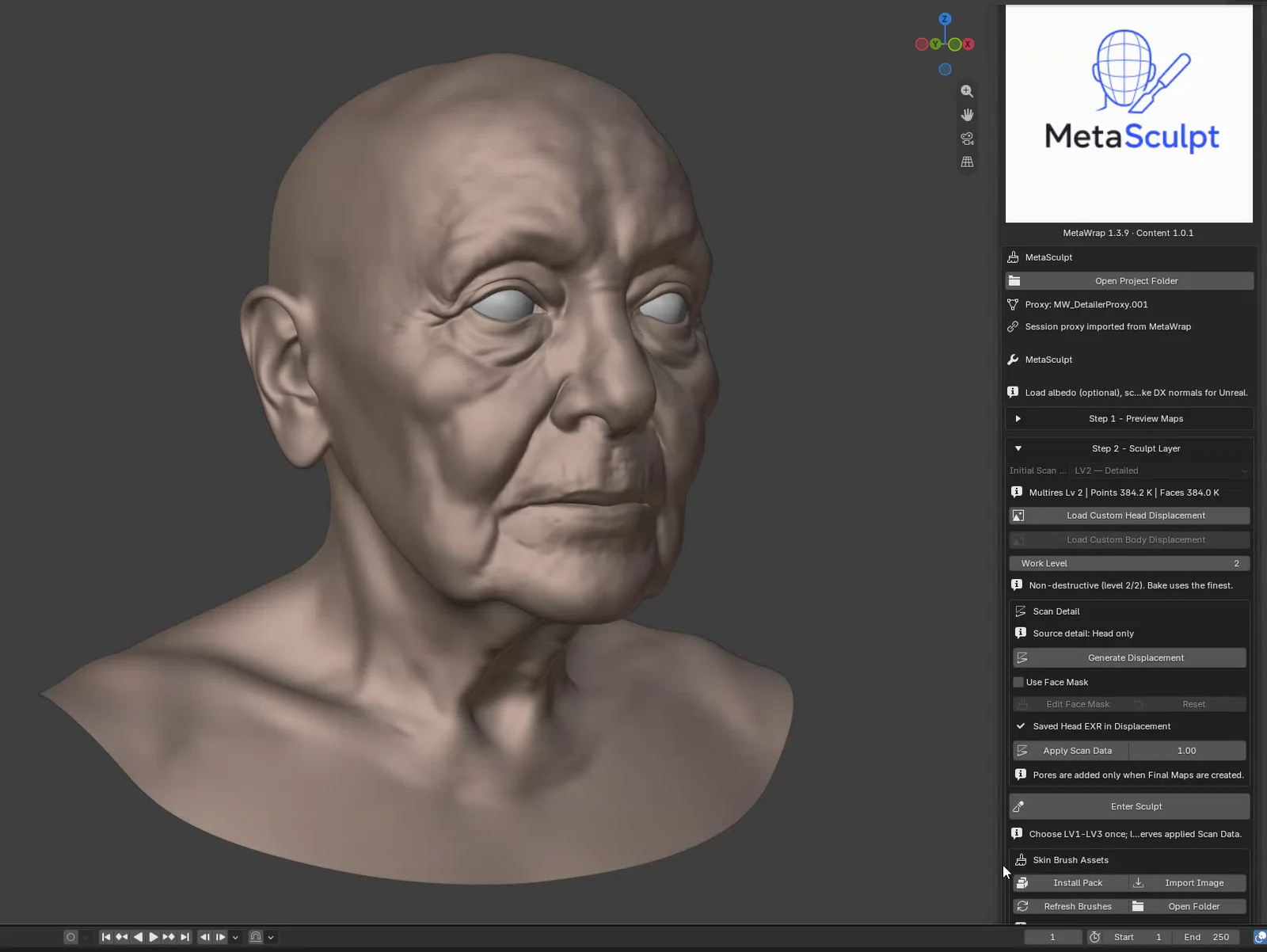
Fresh MetaSculpt session
A fresh MetaSculpt session: the wrapped head and the MetaSculpt panel.
Choose the initial level once
LV1 is the default, LV2 is detailed and LV3 is for fine features.
- 2.1Select the initial level before creating the Sculpt Layer.
- 2.2Use LV1 for most work, LV2 for denser scan detail and LV3 for fine details such as scars.
- 2.3Later Subdivide preserves already applied Scan Data and stops at LV3 in the product UI.
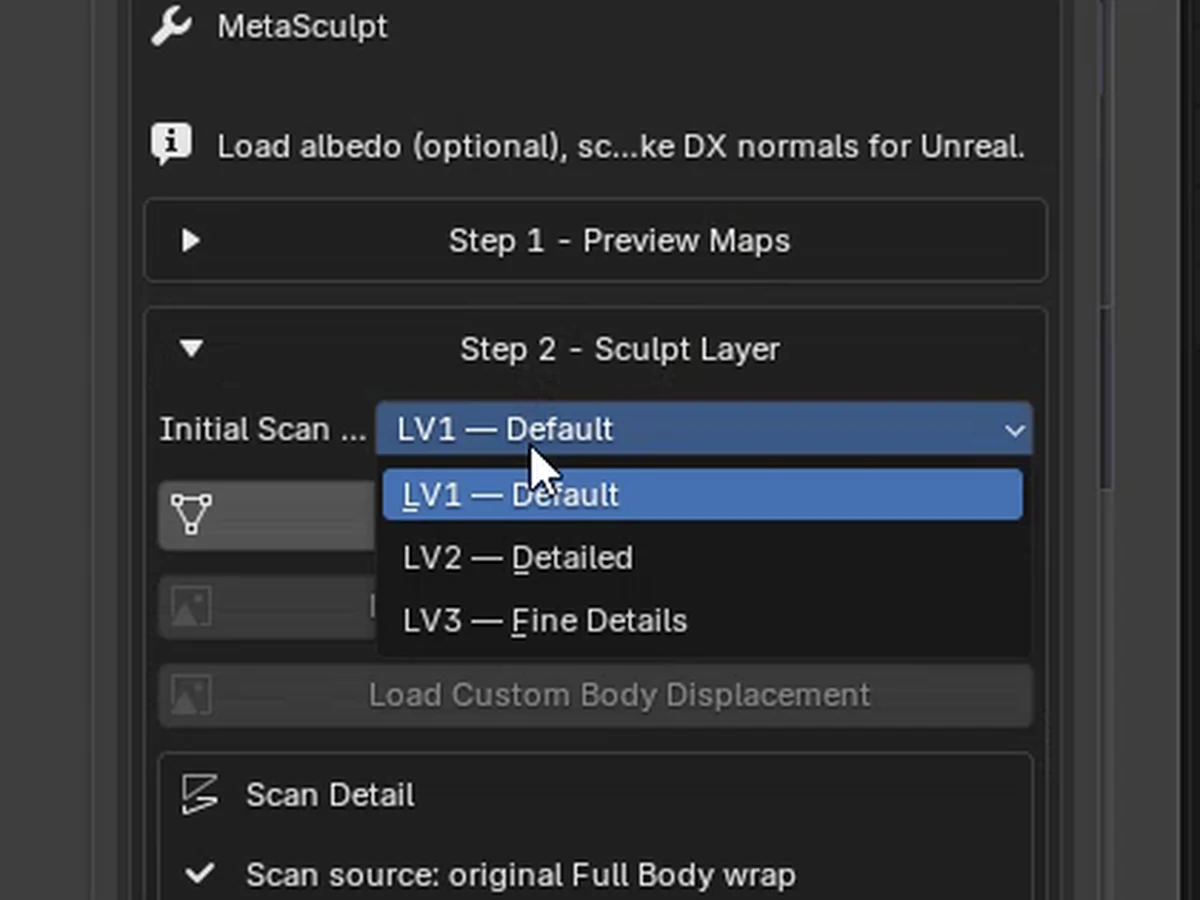
Choose the initial Scan Level
Choose the initial Scan Level
Generate, mask and apply Scan Data
Generate and Apply are separate failure boundaries; Apply succeeds once per Sculpt Layer.
- 3.1Click Generate Displacement.
- 3.2Use Face Mask is off by default. Turn it on to keep scan detail out of parts of the face: Edit Face Mask becomes available, paint white where you want detail and black where you want to protect, then Apply Mask and generate again.
- 3.3Set Strength, then click Apply Scan Data once.
- 3.4Use Clear Sculpt Layer only when the complete transaction must be restarted.
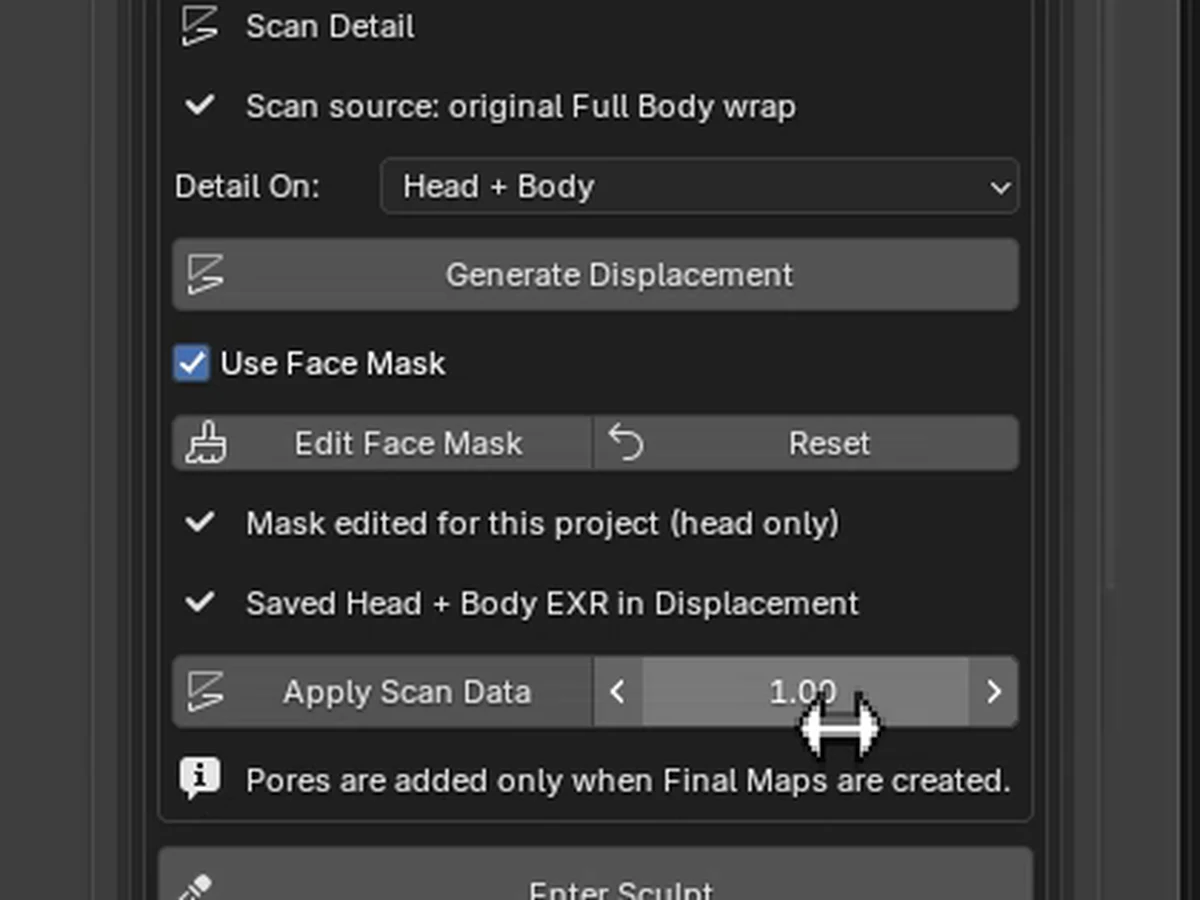
Scan Data controls in order
Scan Data controls in order
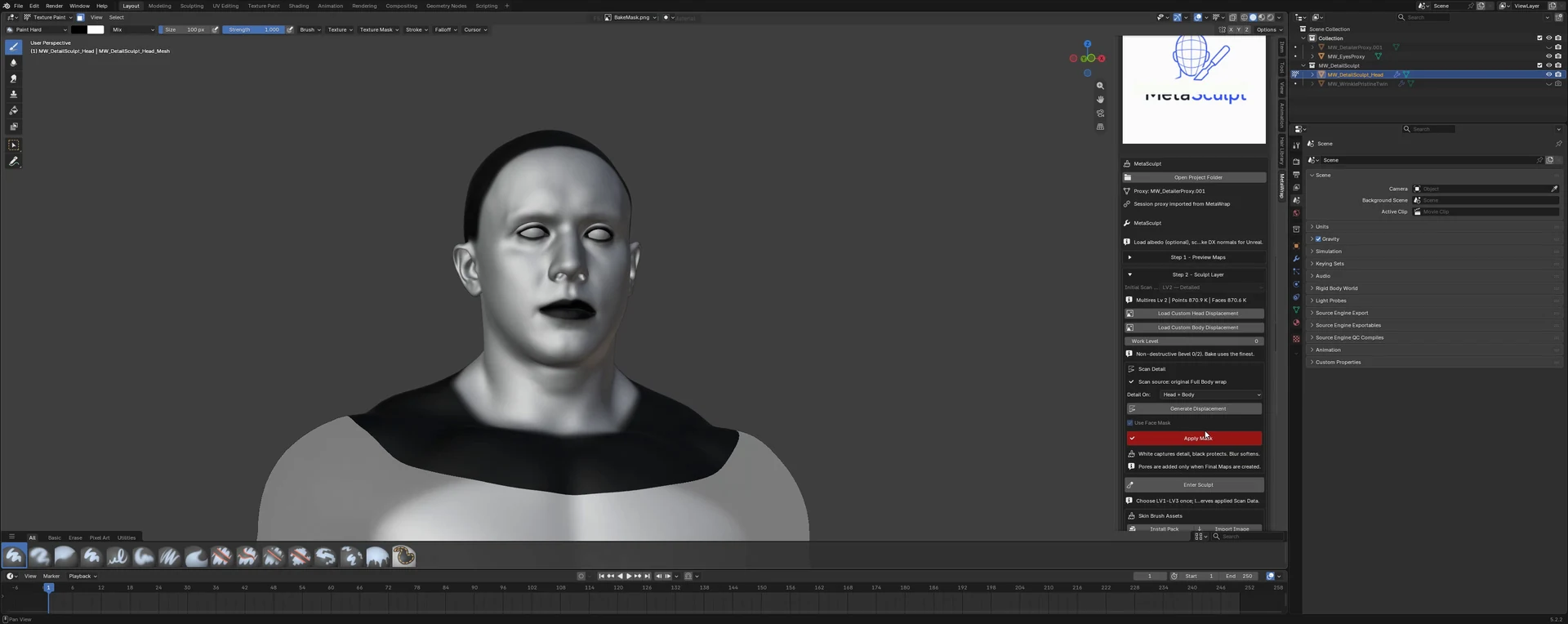
Edit the Face Mask
Edit the Face Mask
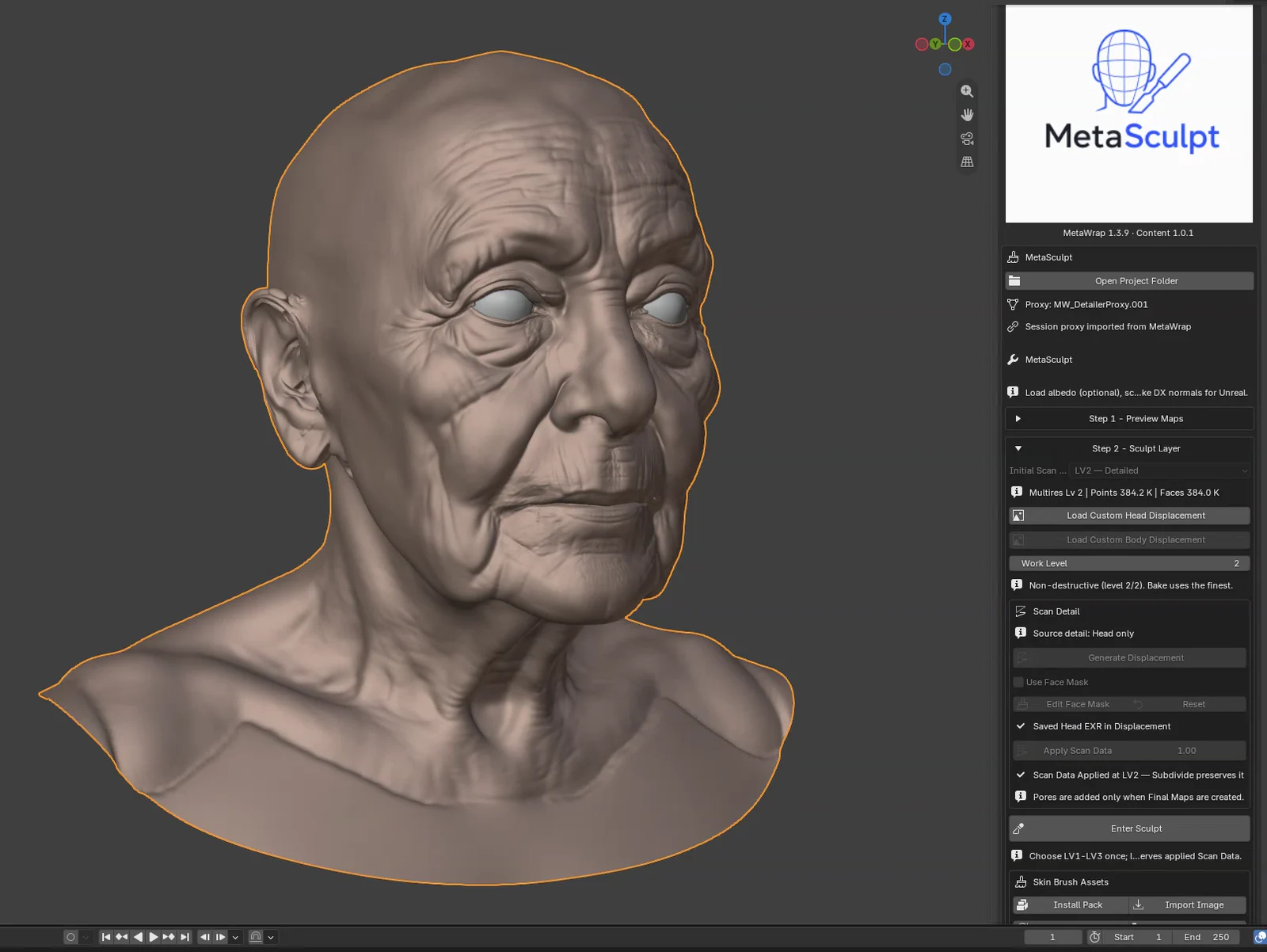
Scan Data applied once
Scan Data is baked into the Multires levels once: the folds and wrinkles of your model come back.
Sculpt and create Final Maps
Manual sculpt remains editable; final customer normals use DirectX for Unreal.
- 4.1Click Enter Sculpt. Always use this button: don't switch to Blender's Sculpt Mode yourself.
- 4.2Install the skin brush pack once (14 alphas): you find it in Blender's brush shelf, under MS Brush, and you can add your own images too.
- 4.3F resizes the brush, Mirror works on both sides (turn it off for details that shouldn't be symmetric) and Smooth softens. Keep the strength low and check often: detail builds up fast.
- 4.4Make your edits, then click Apply Sculpt.
- 4.5Choose Final Size (up to 8K) and whether to Add Base Pores; processing time depends on your computer.
- 4.6Click CREATE FINAL MAPS: head and body normal (DirectX) and cavity maps go to the Project Folder, next to the albedo from MetaWrap.
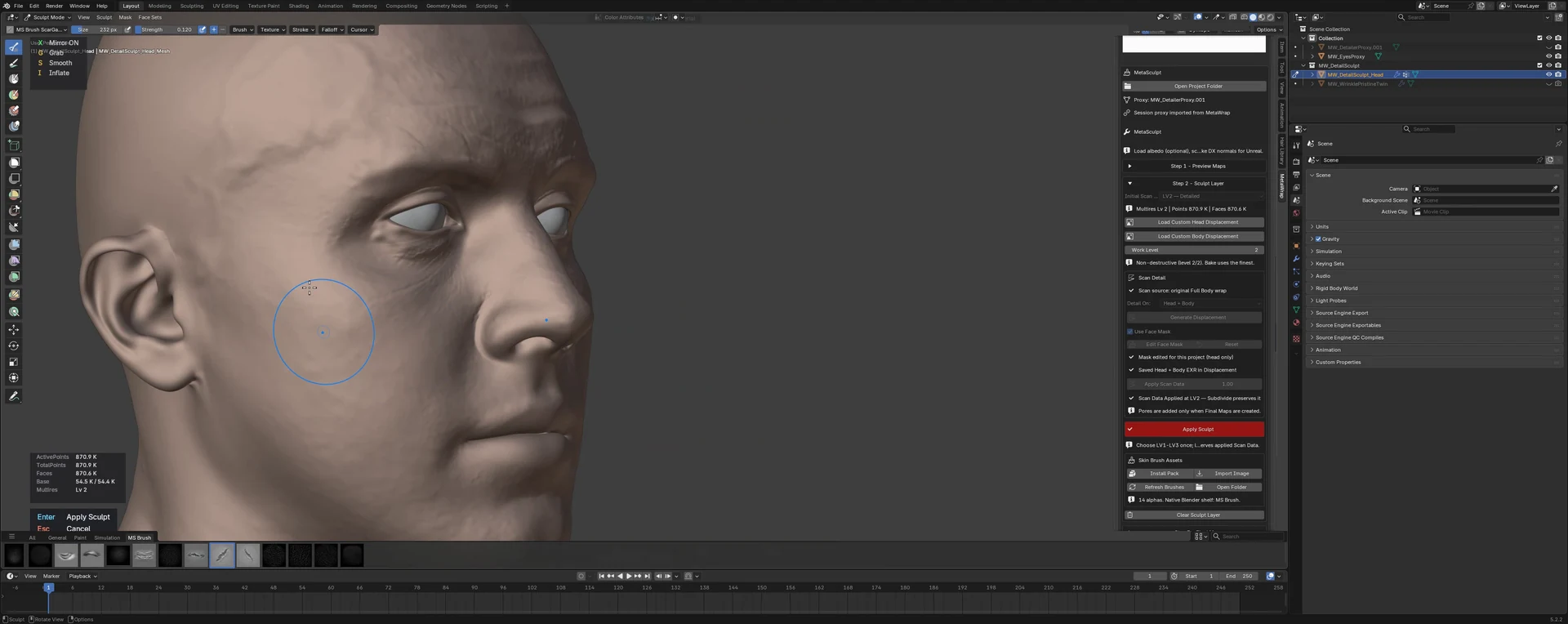
Manual MetaSculpt refinement
Manual MetaSculpt refinement
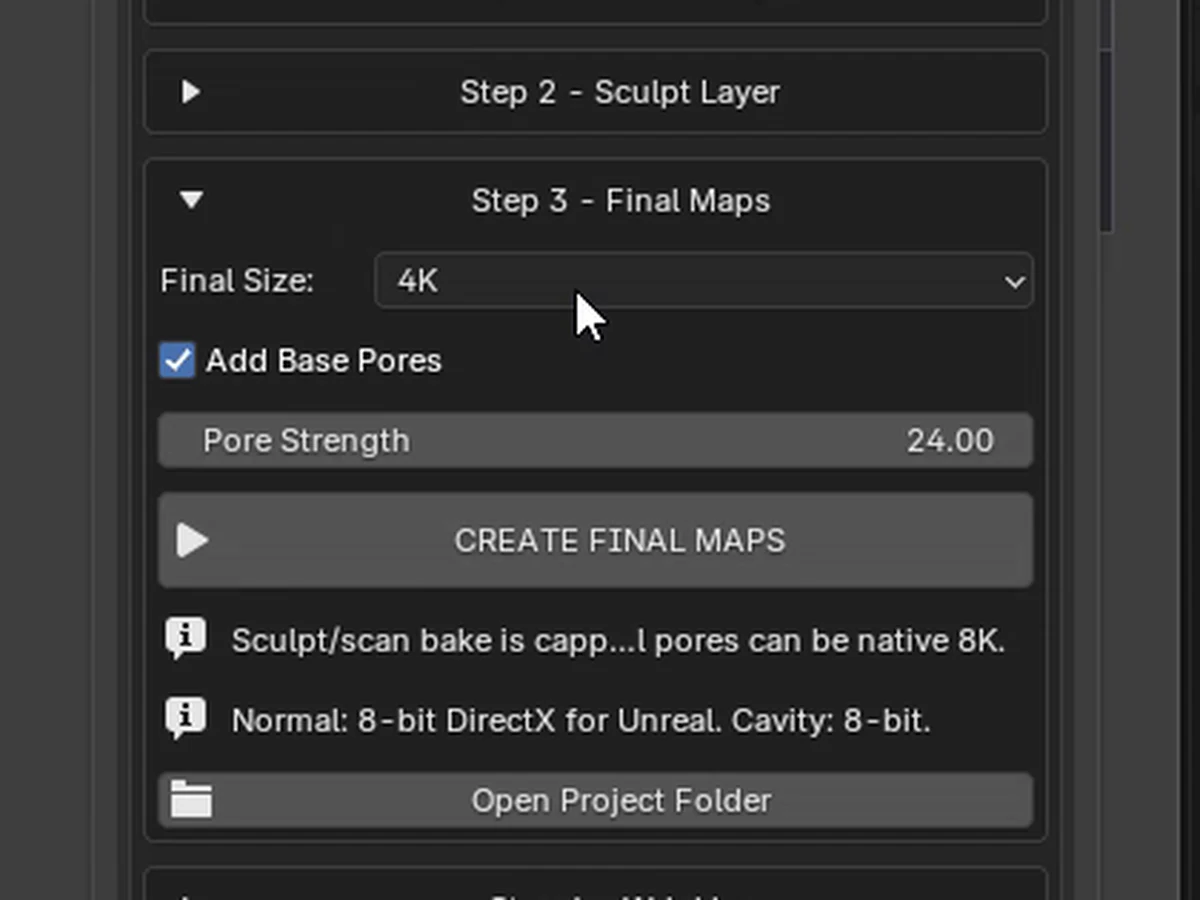
Create Final Maps
Create Final Maps
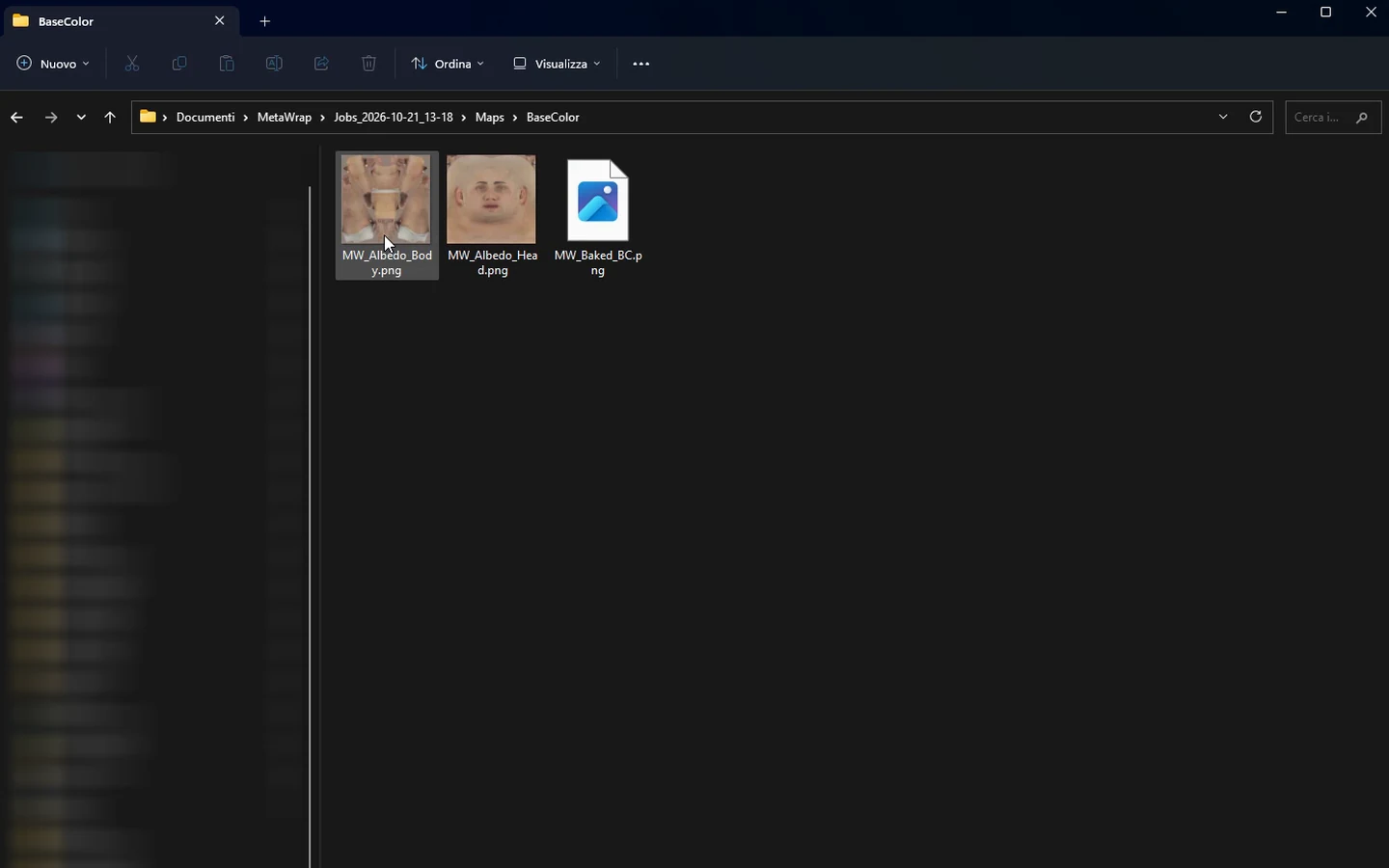
MetaSculpt output folders
MetaSculpt output folders
Preview the maps with LookDev
A quick check in Blender before Unreal.
- 5.1Turn on Show Lookdev Controls to preview the maps under light, with the Skin Shader, Environment and Render panels.
- 5.2Render saves an image of exactly what the left viewport shows, perspective or orthographic, with the same proportions. 1K, 2K and 4K are the long side of the image, not a square.
- 5.3It's a preview only: in Unreal use the default MetaHuman shader, which MetaWrap is built around.
- 5.4Custom shaders work too, as long as they are compatible with these maps.
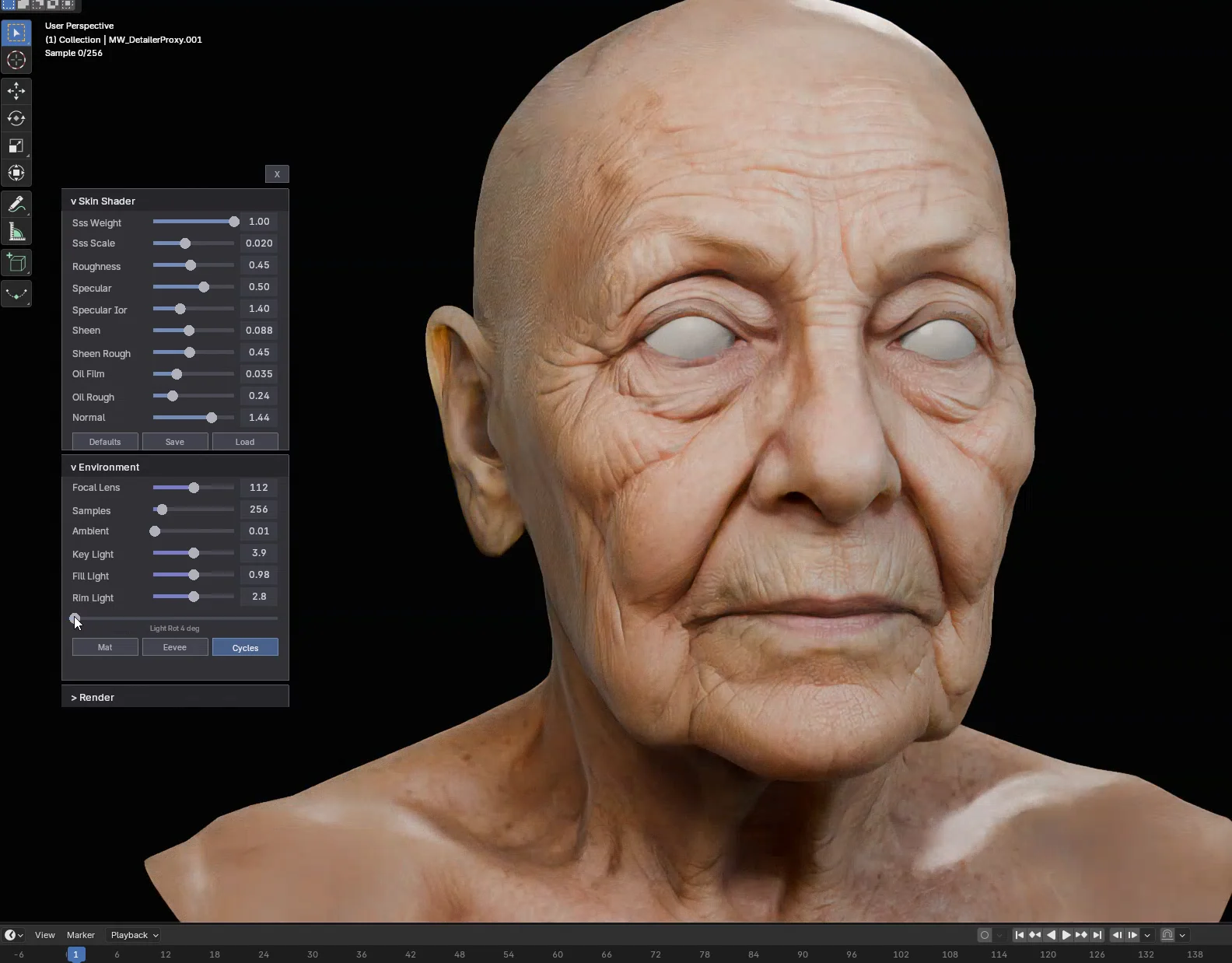
Preview the maps with LookDev
LookDev previews the final maps on the head before you push it to Unreal.
Sculpt the wrinkle maps
In MetaHuman, your expressions drive a set of default wrinkle maps. Here you make your own, for your character: each WM slot is an expression pose. Wrinkle maps are independent from Final Maps.
- 6.1Turn on Enable Wrinkles.
- 6.2Click WM1, WM2 or WM3 to start from the included base, or load a Custom WM.
- 6.3Turn on Show Sculpt Area and sculpt only inside it: it is the region the MetaHuman shader uses for that map.
- 6.4Click Sculpt Wrinkle, sculpt the folds of the expression with the included alphas or your own, then Apply Sculpt.
- 6.5Click Bake Selected WM map for the active slot, or Bake All for every map. You can keep working while it bakes; when it's done, the Project Folder opens by itself.
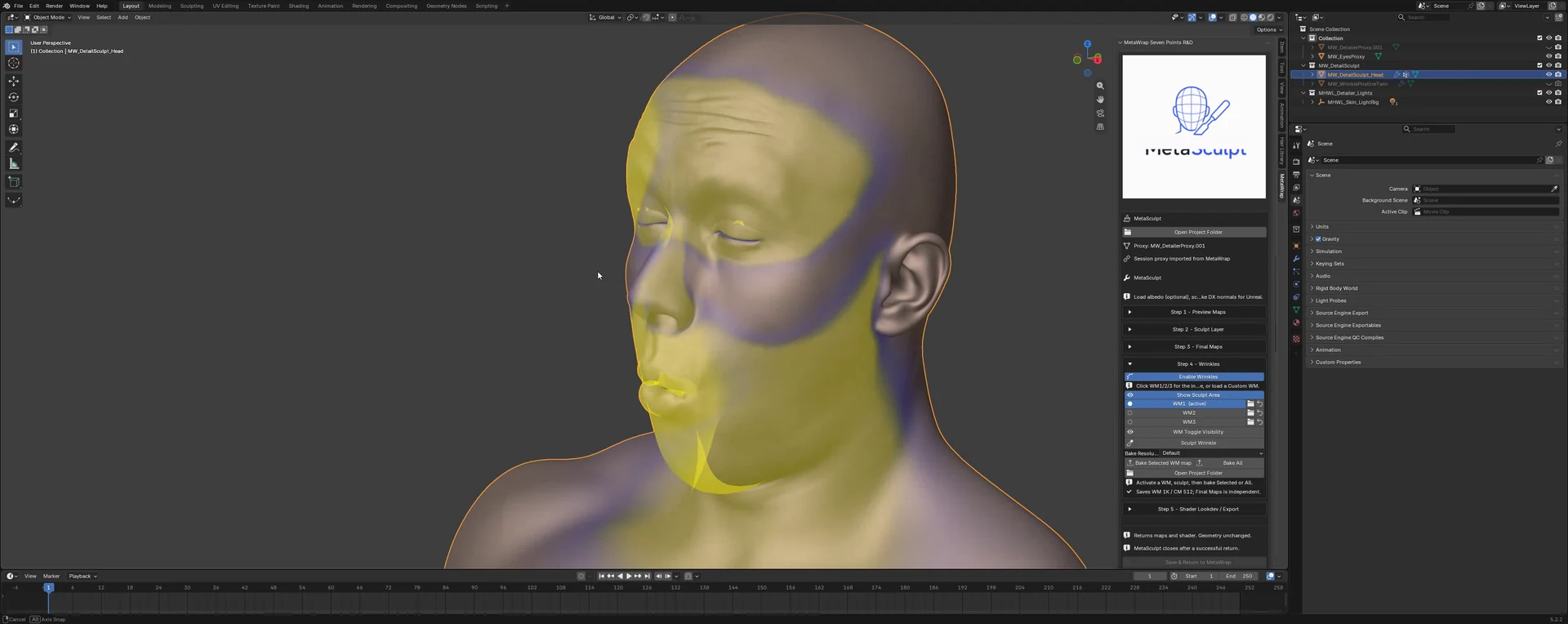
Sculpt a wrinkle map inside its area
Sculpt a wrinkle map inside its area
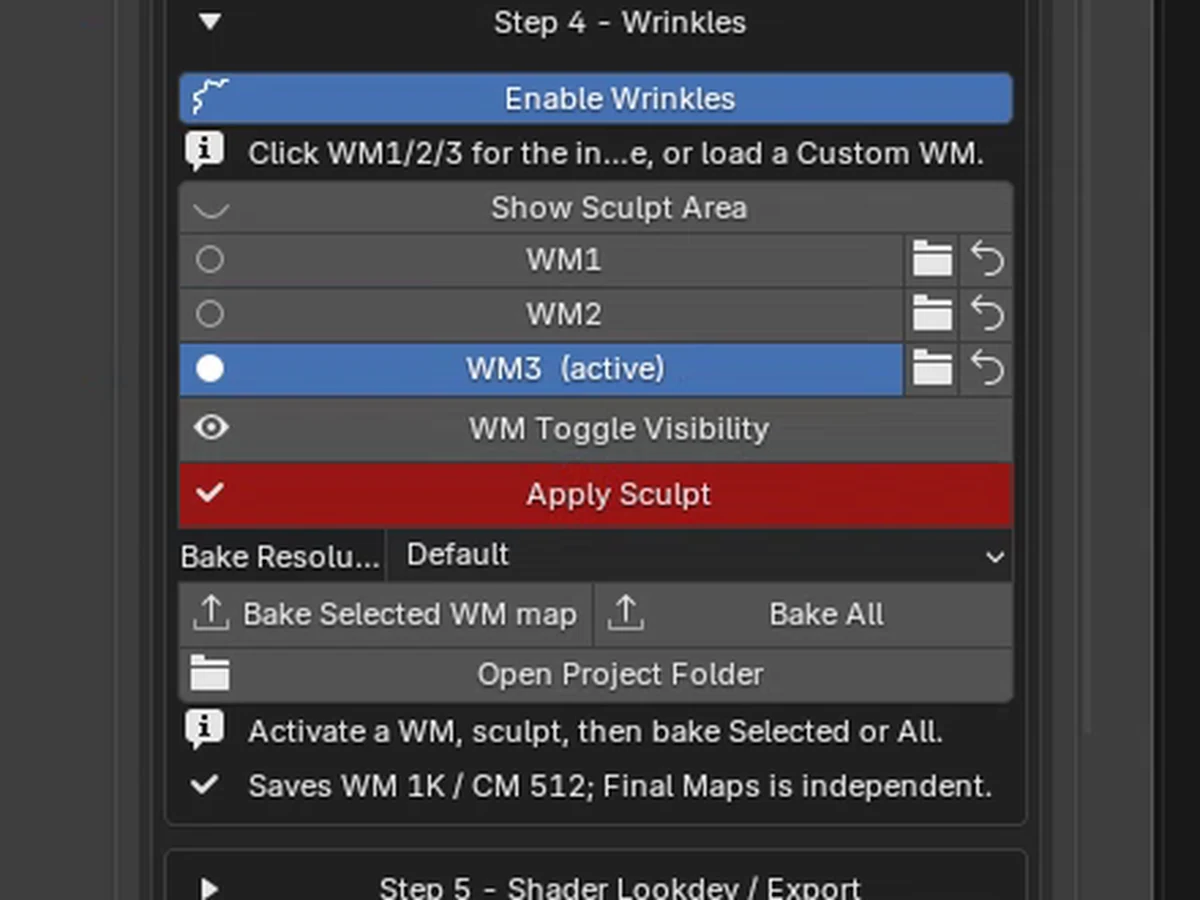
Bake the wrinkle maps
Bake the wrinkle maps
Save and return to MetaWrap
The last button in MetaSculpt brings your final maps back to MetaWrap. Your MetaWrap geometry stays exactly as it was.
- 7.1Run CREATE FINAL MAPS first.
- 7.2Click Save & Return to MetaWrap: MetaSculpt saves and hands the maps to MetaWrap, which comes back to the front.
- 7.3MetaSculpt closes its own window only once MetaWrap confirms it has the maps. If anything goes wrong, it stays open with your work, so you can simply try again.
- 7.4The final maps and the skin shader, with its settings, go back to MetaWrap. The preview turns on there, with the same Skin Shader, Environment and Render controls.
- 7.5Nothing else changes in MetaWrap: geometry, pose, UVs, shape keys and MetaBrush stay as they were, and no new bake starts.
- 7.6Push to Unreal closes the preview controls first and keeps their settings: open Show Lookdev Controls again and they are all there.