Install MetaWrap
Install Core, Content Pack and MetaGroom without extracting or mixing the three packages.
For: Every MetaWrap user
Before you begin
- Windows x64
- Blender 5.2 LTS (recommended), 5.1 or 5.0
- The MetaWrap ZIPs from My MetaWrap
- A free Epic account for the MetaHuman Topology on Fab
What you will complete
- MetaWrap appears in Blender
- Content Pack is verified
- MetaHuman Topology installed
- MetaGroom shares the same installation
Identify the downloads
Explain the purpose of each ZIP before Blender is opened.
- 1.1Core is installed as an add-on.
- 1.2Content Pack is installed from MetaWrap Preferences, never as an add-on.
- 1.3MetaGroom is installed as a second add-on.
- 1.4MetaHuman Topology is a free ZIP from Fab, installed from MetaWrap Preferences.
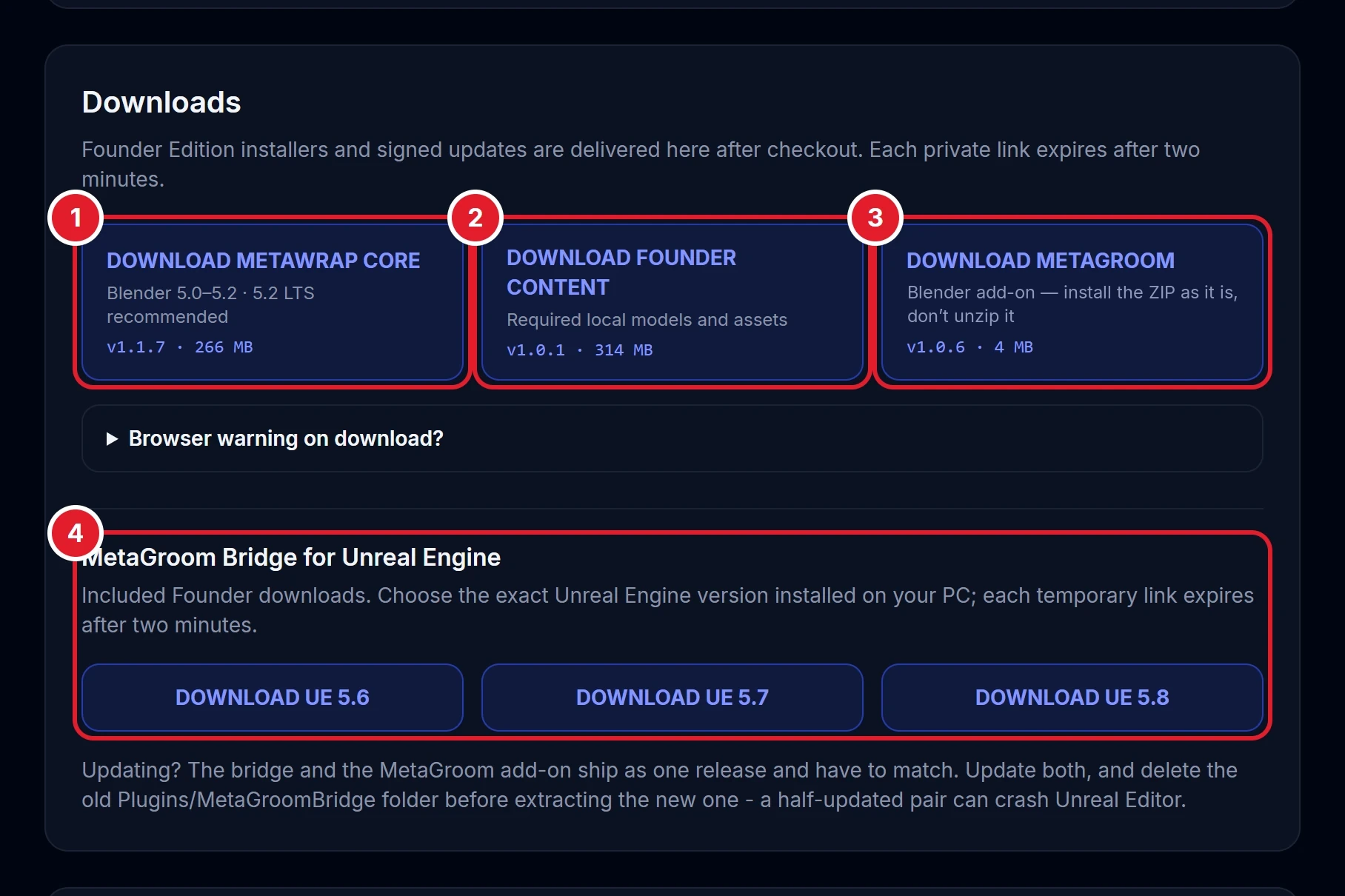
What to download
The Downloads section of My MetaWrap. To start you need only 1 and 2.
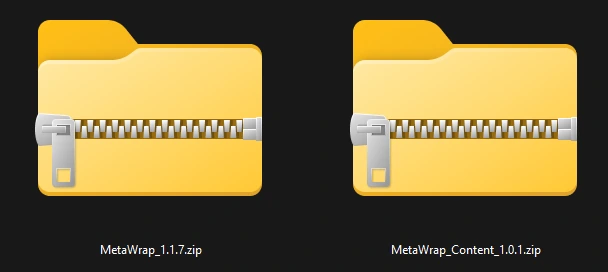
Your MetaWrap downloads
MetaWrap Core and Founder Content as they arrive from My MetaWrap. Keep them zipped: Blender installs the ZIPs as they are.
Install and enable MetaWrap Core
Use Blender's Install from Disk action and leave the archive intact.
- 2.1Use Blender 5.2 LTS if you can: Blender 5.1.0 has a known slowdown, fixed by Blender in 5.2, that makes some MetaWrap steps much slower.
- 2.2Open Edit > Preferences > Add-ons.
- 2.3Choose Install from Disk and select the Core ZIP.
- 2.4Enable the MetaWrap add-on and expand its preferences.
- 2.5Graphics card: nothing to set. Texture Transfer and the final maps pick your card on their own (OptiX first, then CUDA, HIP or oneAPI), even when Blender's Cycles Render Devices is set to None, and put your Blender settings back afterwards.
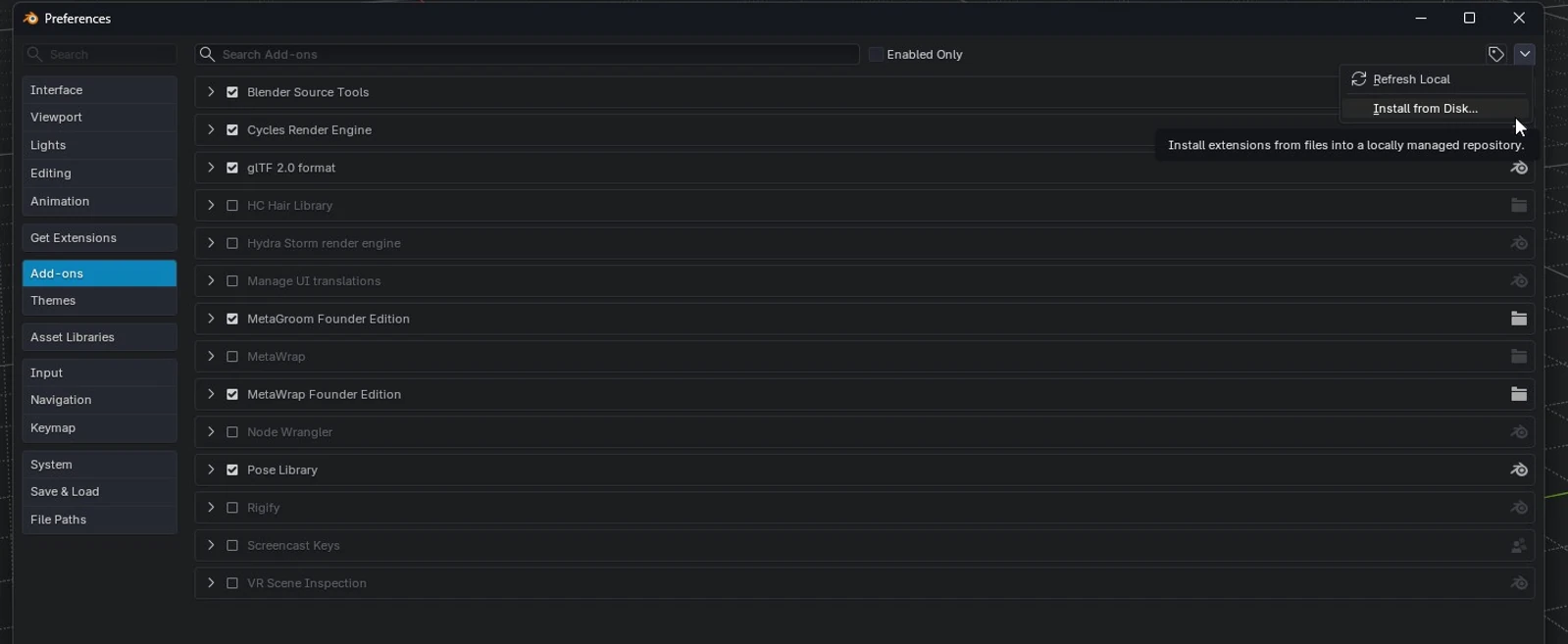
Install MetaWrap Core from disk
Install MetaWrap Core from disk

Enable the MetaWrap add-on
Enable the MetaWrap add-on
Install the shared Content Pack
The Content Pack is verified and shared by all supported Blender versions.
- 3.1In MetaWrap Preferences, under Installation > Founder Content Pack, click Install / Repair ZIP...
- 3.2Select the Content ZIP.
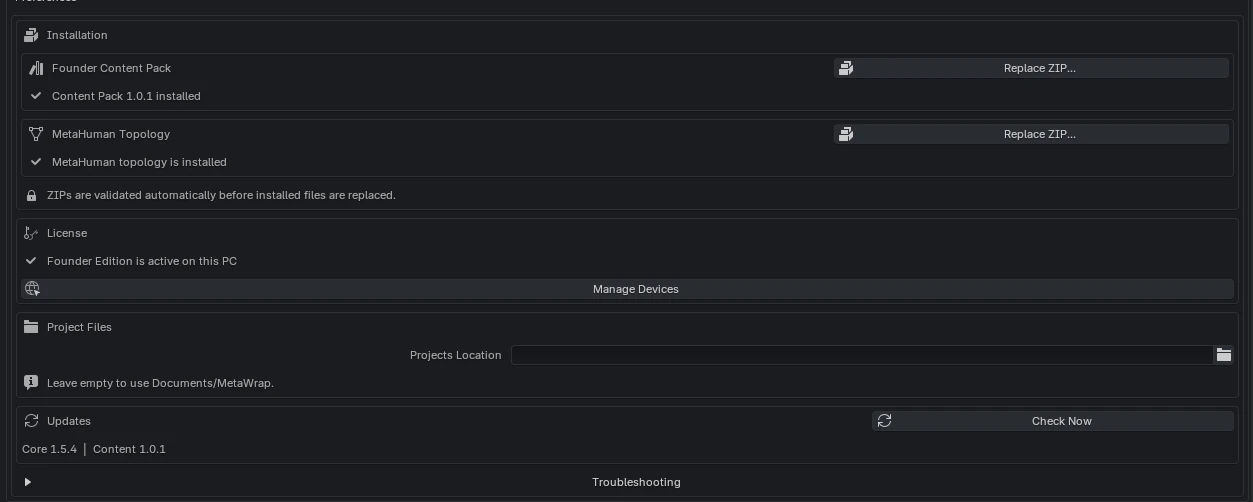
- 3.3Wait for the installed-version confirmation before closing Preferences.
Install the MetaWrap Content Pack
Install the MetaWrap Content Pack

Content Pack installation complete
Content Pack installation complete
Install the MetaHuman Topology from Fab
MetaHuman topology is not bundled with MetaWrap: it is a free download from Fab under your own Epic account.
- 4.1In MetaWrap Preferences, under MetaHuman Topology, click Open on Fab: it opens the free MetaHuman Conform Topology listing.
- 4.2Add it to your library and download the ZIP.
- 4.3Click Install ZIP... and pick the untouched ZIP: do not extract it.
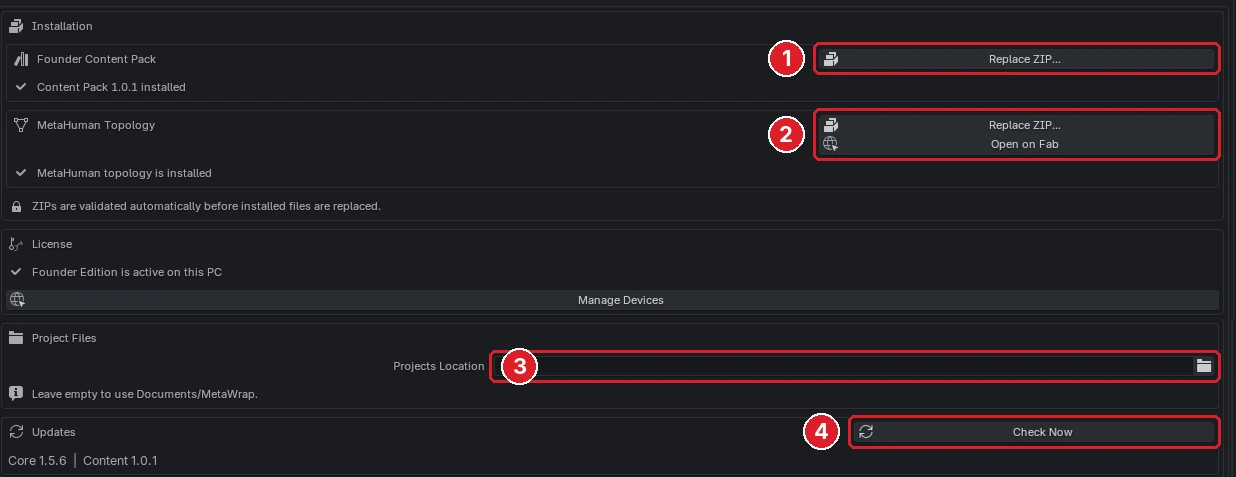
MetaWrap preferences, ready to go
What the preferences look like once everything is installed and activated.
Install MetaGroom and find the sidebar
Finish the suite and verify the user-facing entry point.
- 5.1Install the MetaGroom ZIP through Install from Disk.
- 5.2Enable it as a separate add-on.
- 5.3Open a 3D Viewport, press N and select the MetaWrap tab.

Enable MetaGroom
Enable MetaGroom
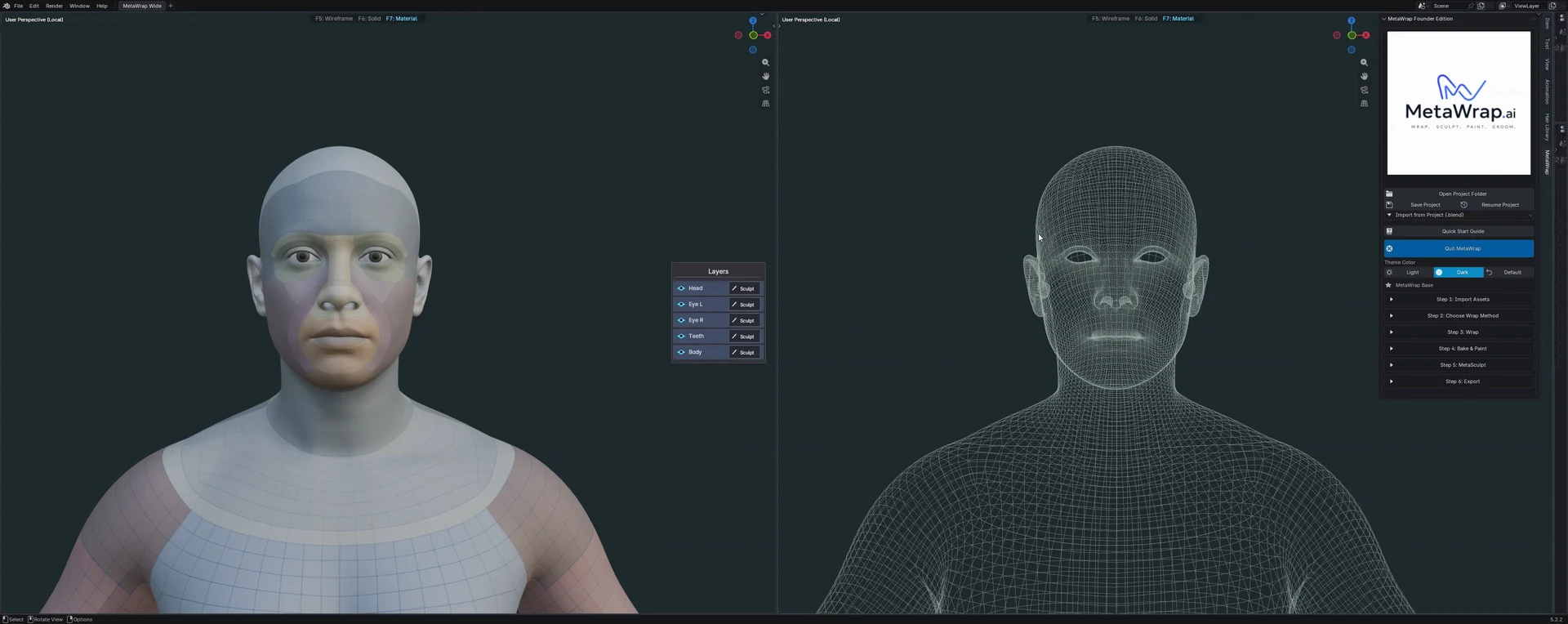
MetaWrap sidebar ready
MetaWrap sidebar ready