Create and wrap a head with GNM
Verify the complete installation without downloading an external scan.
For: Every MetaWrap user
Before you begin
- Licensed MetaWrap
- A clean Blender scene
What you will complete
- Generated GNM identity
- Optional Skin and Tone in MetaWrap
- First completed wrap
Generate an identity
No scan and no AI generator needed: Google's GNM is built into MetaWrap and creates a brand-new face.
- 1.1Open the MetaWrap tab and click GNM Head Generation, under Extras. A default head appears: your starting point.
- 1.2Face Mixer is a wheel of twelve identities: click anywhere on it to blend them into a new face.
- 1.3Random Face gives you a new person with every click. Gender moves the face from female to male.
- 1.4For finer control, Face Features Mixer has a slider for each area (nose, mouth, jaw, eyes, brows, cheeks, ears and more), and Face ID Mixer shows the twelve identities as sliders.
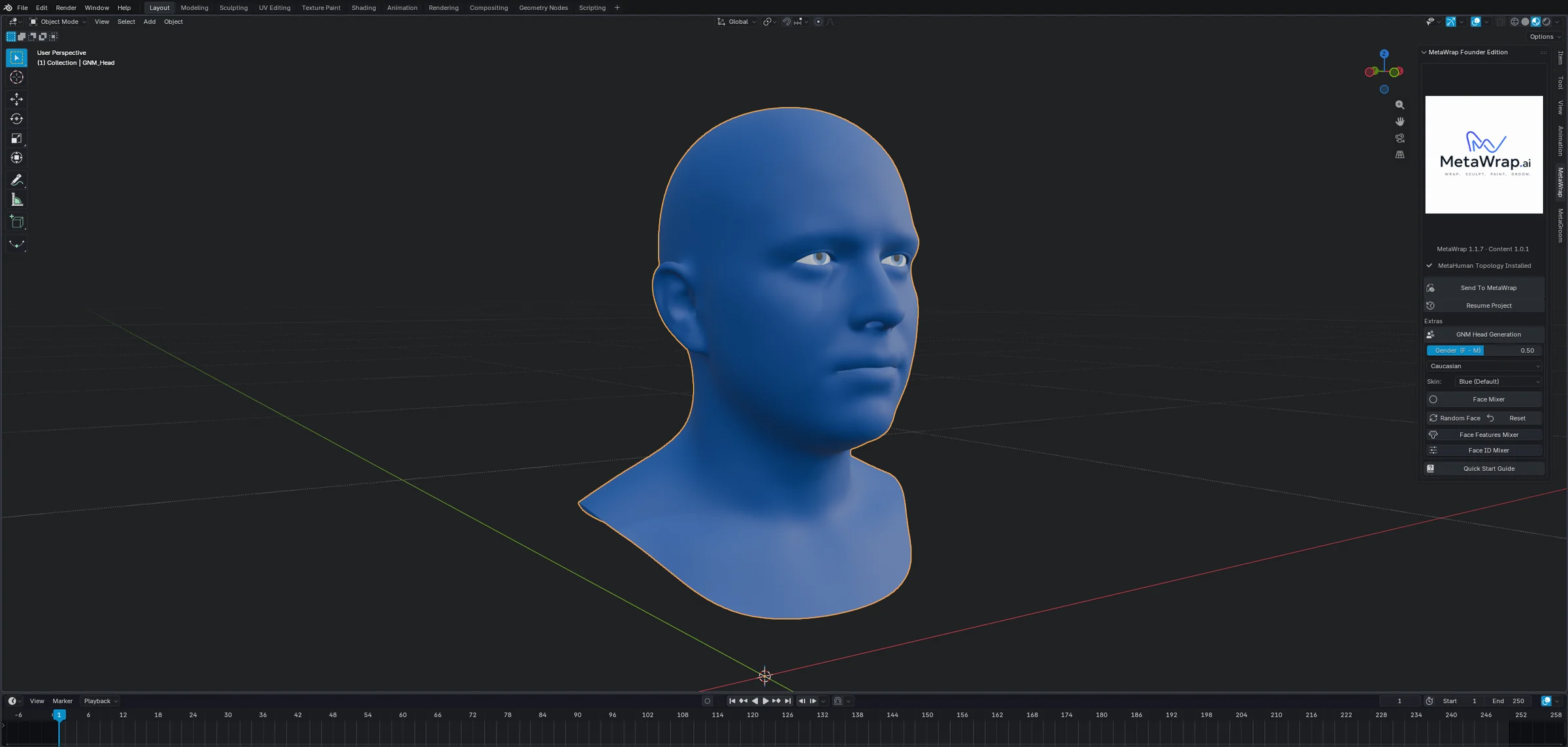
Fresh GNM Head
A fresh GNM head. Every GNM control sits in the MetaWrap tab on the right, under Extras.
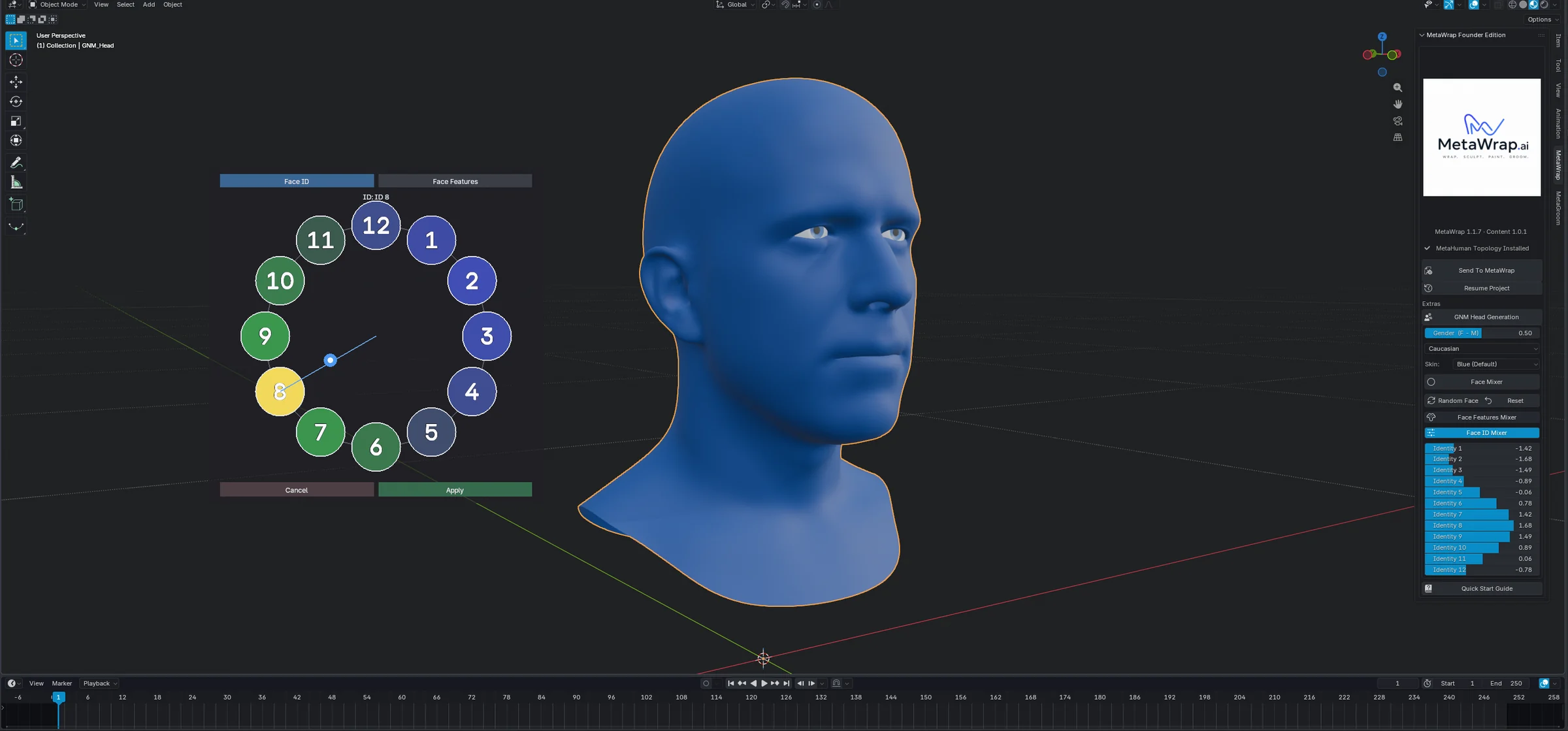
Face ID Mixer
Pick a point on the wheel to blend the twelve identities, then click Apply. The sliders in the panel show the mix.
Choose Skin and Tone
Skin is optional; Blue keeps the original lightweight preview.
- 2.1Pick a Skin from the list, then adjust the Tone.
- 2.2Blue (Default) is the plain preview without a skin.
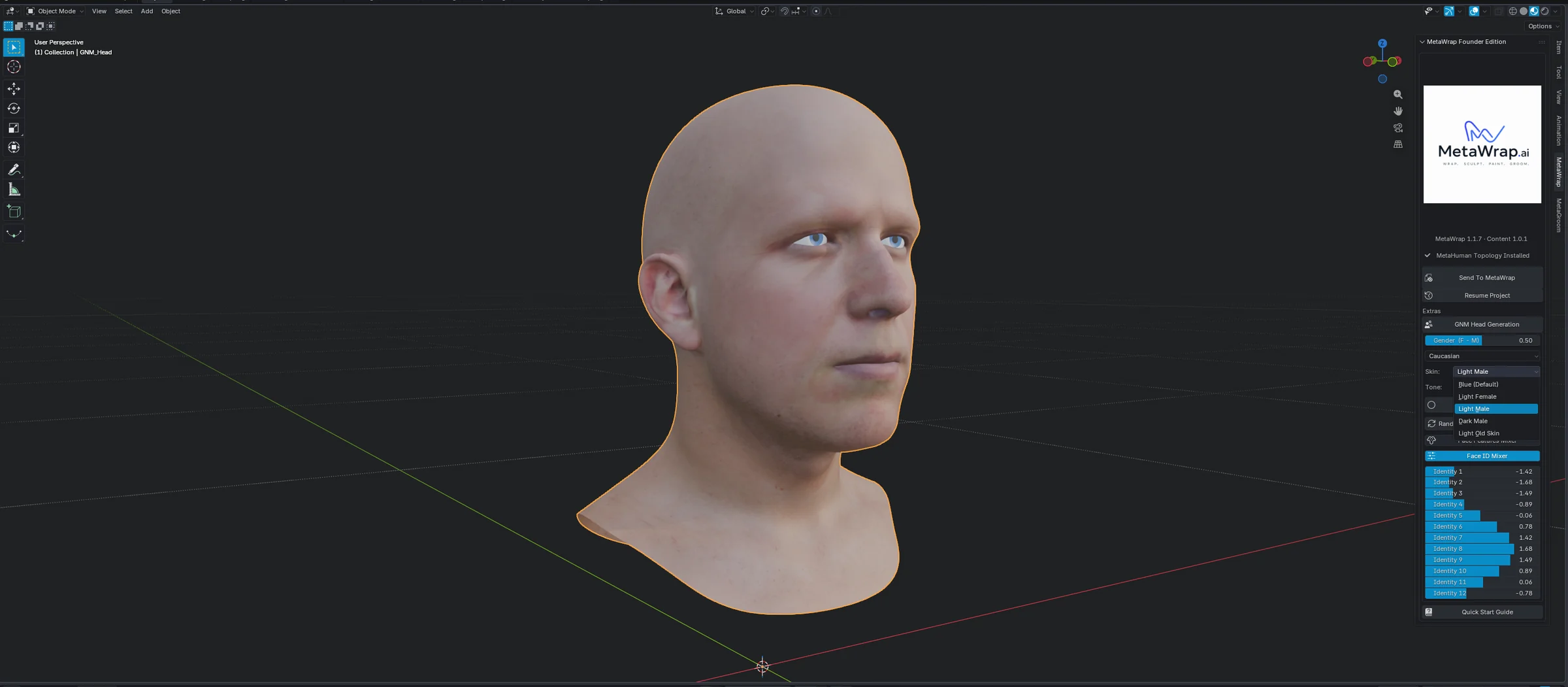
Skin and Tone
Pick a Skin from the list, then adjust the Tone. Blue (Default) is the plain preview without a skin.
Send the head to MetaWrap and wrap
Send To MetaWrap carries the generated head and selected albedo into the normal Source workflow.
- 3.1Click Send To MetaWrap: MetaWrap opens with the MetaHuman template on the left and your GNM head, with its skin, on the right.
- 3.2In Step 2: Choose Wrap Method choose Auto, then click MetaWrap in Step 3: Wrap. A few seconds later the head is wrapped.
- 3.3Want full control? Switch to Manual and click Landmarks: it works exactly as in the Full Head tutorial.
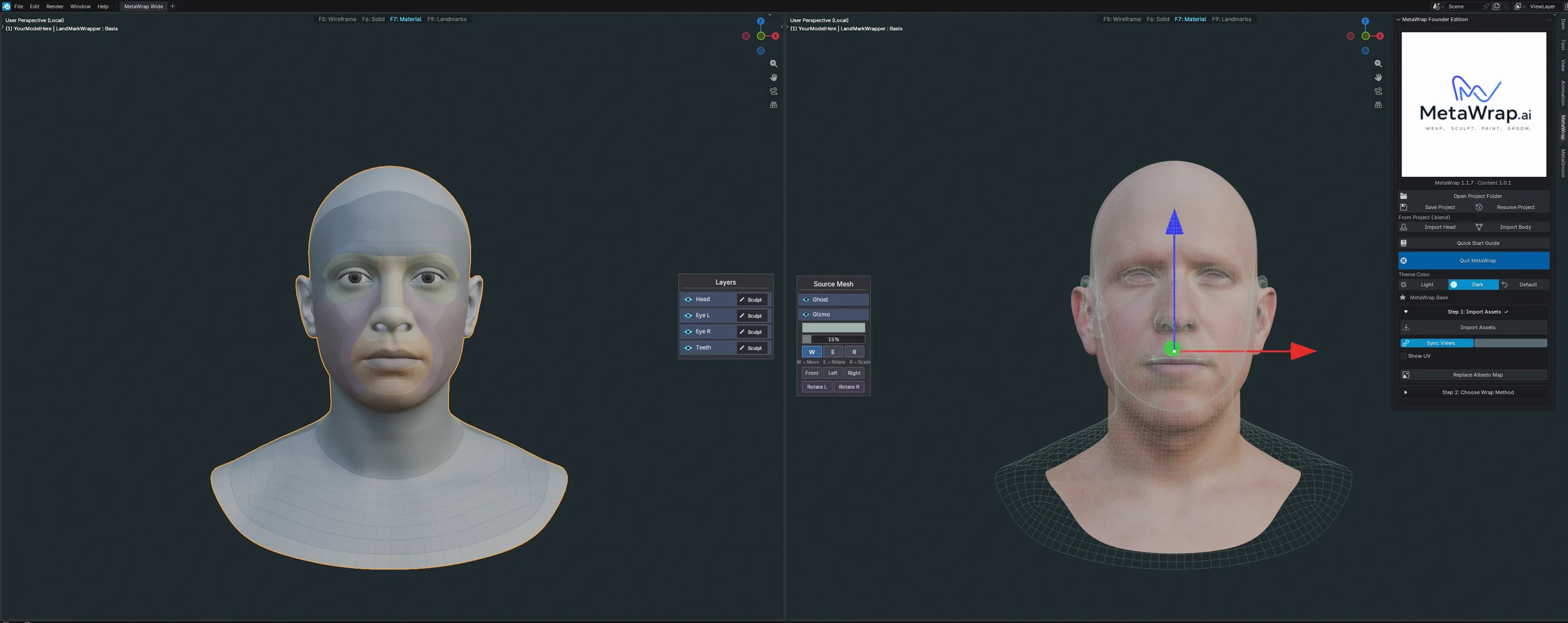
GNM transferred into MetaWrap
After Send To MetaWrap: the MetaHuman template on the left, your GNM head with its skin on the right.
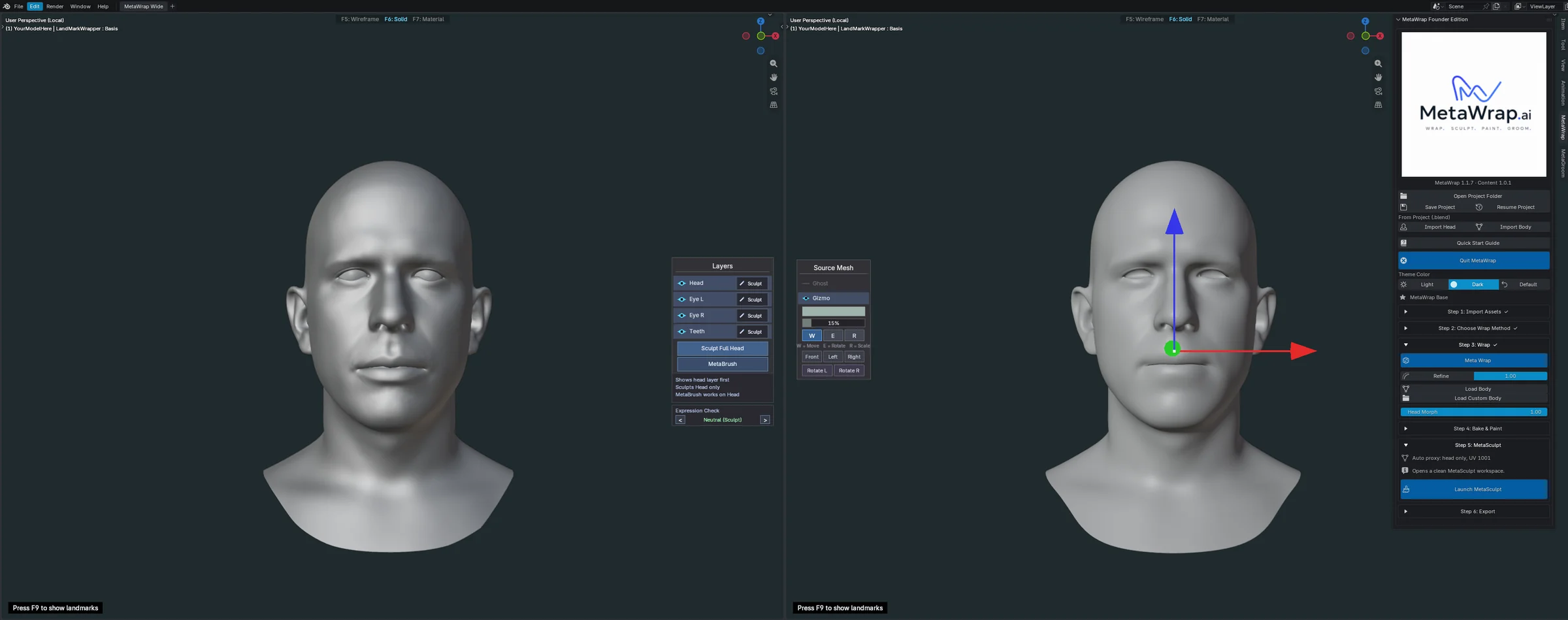
First GNM wrap result
Wrap done: the MetaHuman head on the left now has the shape of your GNM head on the right, and Step 3: Wrap shows a tick.
Refine the wrap and fix the details
A light model like a GNM head has less geometry to follow, so Auto alone isn't perfect everywhere. Refine and MetaBrush finish the job.
- 4.1In Step 3: Wrap, click Refine: it pulls the wrap even closer to the geometry. Click it again to get closer still; the slider next to it sets the strength.
- 4.2Then fix the details with MetaBrush, in the Layers panel: the mouth, the eyes and the ears.
- 4.3MetaBrush isn't a common restore brush: it's a smart restore that brings each point back to a clean shape. F changes the radius, - and + the strength, X turns the mirror on or off.
- 4.4Ctrl+Z undoes the last stroke. Enter applies, Esc cancels.
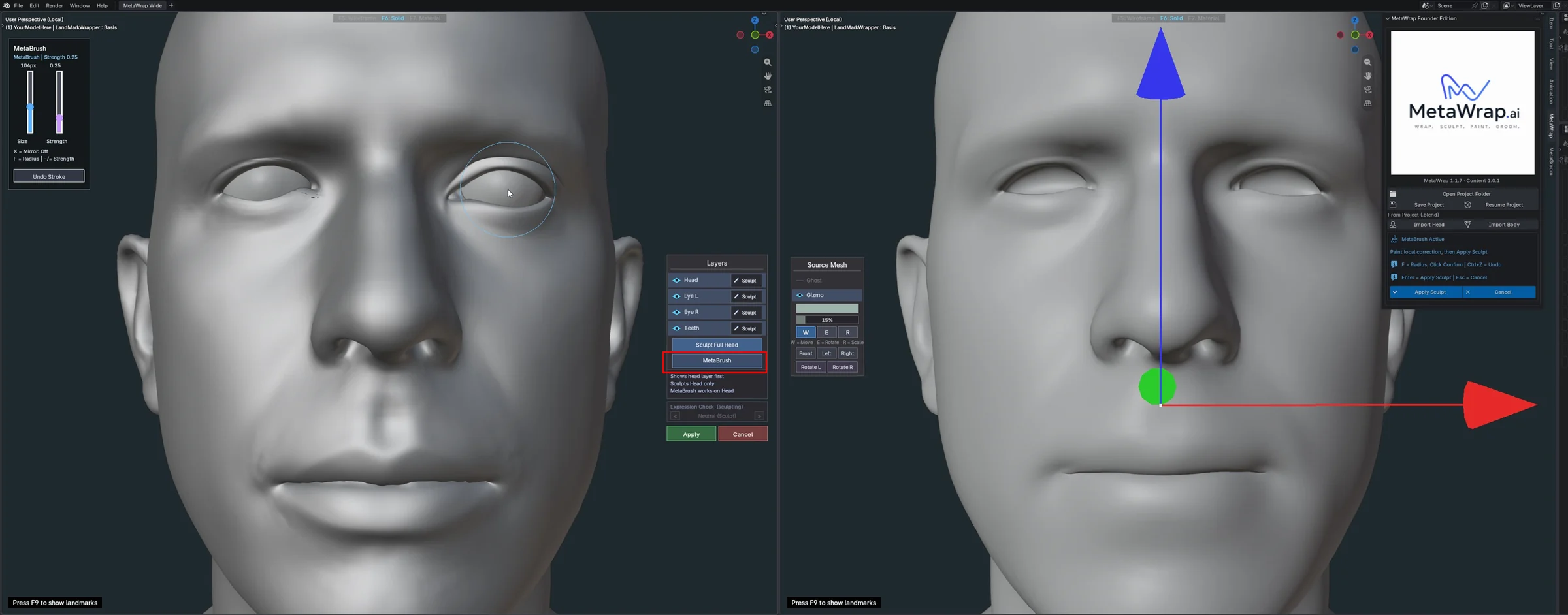
MetaBrush
MetaBrush active: brush size and strength top left, the MetaBrush button highlighted in the Layers panel, Apply or Cancel right below. It repairs points; it does not sculpt expressions.
Check the expressions
Expression Check tests the wrapped head in MetaHuman's expressions. Where a point misbehaves, MetaBrush restores it.
- 5.1Turn on Expression Check and step through the expressions with the arrows. Look for spikes, folds or points pulled out of place.
- 5.2Check the inner corners of the mouth first: that is where spikes show up most often.
- 5.3Where you see one, paint over it with MetaBrush.